Hello there, fellow creator! Have you ever sat down to generate an image, stared at the blinking cursor inside the prompt box, and experienced total "Prompt Paralysis"? You might have a simple 4-word core idea in your head—like "an ancient temple in a foggy forest"—but you don't feel like typing out 80 words of camera focal lengths, octabox lighting modifiers, and render engine tags just to see what looks good.
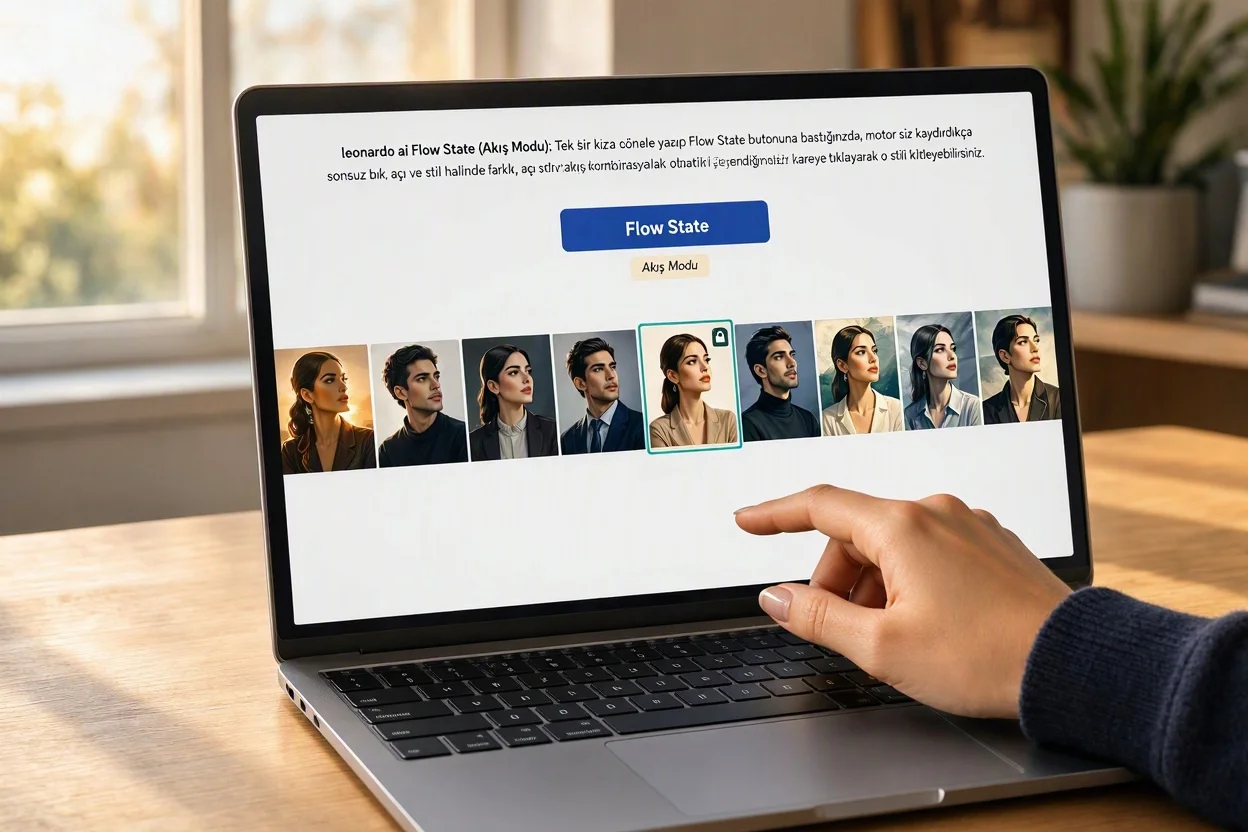
Traditionally, text-to-image AI forced you into a slow "type, wait 20 seconds, tweak words, repeat" loop. To shatter that bottleneck, the engineering team at Leonardo.Ai built a revolutionary interactive exploration engine: Flow State. You type a single short phrase, hit one button, and as you scroll your mouse wheel, the engine generates a continuous, infinite waterfall of distinct lighting setups, camera angles, and art styles in real time! Grab a coffee, and let's explore the latent-space mathematics behind Flow State—and how to lock in your dream aesthetic with a single click.
1. From "Prompt Engineering" to "Visual Curation": How Flow State Works Under the Hood
In standard generation modes (like Phoenix or Kino XL), you feed the diffusion solver a single fixed coordinate, and it returns 4 static images. Powered by an ultra-low-latency distilled diffusion backbone (Leonardo Lightning XL), Flow State instead launches a multi-directional Latent Space traversal:
- Automated Sub-Prompt Vector Perturbation: When you type a simple 4-word concept, the engine intercepts your core semantic vector and silently multiplies it across dozens of hidden aesthetic matrices—ranging from cyberpunk neon and 35mm anamorphic cinema to isometric 3D claymation, watercolor, and dark fantasy.
- Real-Time Infinite Scroll Synthesis: As fast as you scroll down the page, GPU workers synthesize fresh batches on the fly, varying camera elevations (bird's-eye, worm's-eye, macro close-up) and color harmonies.
- "More Like This" Latent Vector Narrowing: The moment a specific frame catches your eye, clicking "More Like This" collapses the wide random search radius and locks the generator onto that exact frame's style, lighting, and color vector—streaming endless variations of that specific aesthetic!
// FLOW STATE LATENT SPACE EXPLORATION & CONVERGENCE MATHEMATICS

// 1. Initial Infinite Scroll Stream (Wide-Variance Aesthetic Perturbation):
Z_stream(i) = V_core(Prompt) + Sigma_wide * [ w_style(i)*E_style + w_light(i)*E_light + w_cam(i)*E_cam ]

// 2. Vector Convergence After Clicking "More Like This" (Style Lock):
Z_locked(j) = Z_selected + Sigma_narrow * Normal_Noise(0, 1)   (Where Sigma_narrow << Sigma_wide)

V_core(Prompt) : Semantic Core Vector of Your Short Input Phrase
E_style, E_light: Automated Style, Lighting, and Camera Perturbation Matrices
Z_selected     : Latent Coordinate of the Frame You Clicked
Sigma_narrow : Tight Radius Preserving Exact Aesthetic While Varying CompositionIn standard AI modes, detailed prompts win. In Flow State, overly long prompts restrict the engine's ability to surprise you! Feeding it a clean 3-to-8-word subject gives the latent explorer maximum room to test wildly different lighting and artistic directions.
Flow State replaces the tedious 'type-wait-tweak' prompting loop with continuous latent-space exploration—streaming dozens of distinct lighting and style permutations as fast as you can scroll.
2. Step-by-Step Workflow: The "Convergence Funnel" Technique
To go from a vague idea to a 4K studio masterpiece in under 60 seconds, follow this five-step funnel:
- Step 1 (Toggle Flow State ON): Inside the Leonardo.Ai Image Generation workspace, flip the Flow State switch on.
- Step 2 (Enter a 4-Word Seed Idea): Skip all camera and lighting jargon. Type a pure subject—for example: "A mechanical owl perched on a glowing crystal branch."
- Step 3 (Scroll the Waterfall): Hit Generate and scroll down slowly. Watch as the engine tests photorealism, 3D Pixar styling, steampunk brass blueprints, and anime cel-shading side by side.
- Step 4 (Click "More Like This" to Lock the Vibe): Spot a frame with breathtaking emerald bioluminescent lighting? Hover over that image and click "More Like This." The feed refreshes instantly, and every new row you scroll now shares that exact emerald lighting and texture!
- Step 5 (Save Style & 4K Upscale): Click your favorite converged frame, save its style preset for future projects, and hit Universal Upscaler to boost it to 4K resolution.
  [LEONARDO.AI FLOW STATE: THE VISUAL CONVERGENCE FUNNEL]

  1. SEED INPUT: "An ancient clocktower in the clouds" (Just 6 Words!)
       |
       v
  +-----------------------------------------------------------------------+
  | STAGE 1: WIDE EXPLORATION STREAM (Infinite Scroll - Auto Style/Light) |
  | [Tile 1: Anime]  [Tile 2: Cyberpunk]  [Tile 3: Dark Gothic Cinema]    |
  +-----------------------------------------------------------------------+
                                                       |
                            (User Clicks "More Like This" on Tile 3!)
                                                       v
  +-----------------------------------------------------------------------+
  | STAGE 2: LOCKED LATENT STREAM (Focused Aesthetic Variations)          |
  | [Tile 3A: Gothic/Wide]  [Tile 3B: Gothic/Low Angle]  [Tile 3C: Macro] |
  +-----------------------------------------------------------------------+
                                                       |
                                      (Select Winner & Universal Upscale)
                                                       v
  +-----------------------------------------------------------------------+
  | STAGE 3: FINAL 4K PRODUCTION ASSET                                    |
  +-----------------------------------------------------------------------+
3. Steering the Stream: Vibe, Lighting, Shot Type, and Color Filters
If you want to nudge the infinite stream before scrolling, use the four quick-selector dropdowns beneath the prompt bar:
- Vibe: Pre-filters the artistic medium (Concept Art, Claymation, Isometric, Anime, Sci-Fi, Vector Sticker).
- Lighting: Locks illumination physics (Bioluminescent, Golden Hour, Chiaroscuro, Studio Softbox, Neon).
- Shot Type: Sets camera framing (Extreme Close-Up, Bird's-Eye View, Low Angle, Wide Cinematic).
- Color Theme: Aligns outputs with your brand palette (Cyberpunk, Monochrome, Warm Autumn, Pastel).
4. Standard Generation Mode vs. Flow State Comparison Matrix
| Workflow Metric | Standard Mode (Phoenix / Kino XL) | Flow State (Infinite Stream Mode) |
|---|---|---|
| Optimal Prompt Length | Long & Explicit (40 – 120 Words + Camera Tags) | Ultra-Short Seed Phrase (3 – 10 Words!) |
| Generation Cadence | Fixed Batch of 4 Images per Click | Continuous Real-Time Waterfall as You Scroll |
| Aesthetic Discovery Method | Manual Keyword Trial-and-Error | One-Click "More Like This" Vector Locking |
| Token Consumption Model | Fixed Cost per Batch (e.g., 12–24 Tokens) | ~1 Token per Newly Rendered Tile on Scroll |
| Best Use Case | Exact typography & strict multi-subject layout | Rapid ideation, moodboarding, logos & style discovery |
1. Don't Burn Your 150 Free Daily Tokens by Fast-Scrolling! Because Flow State renders images so fast as you scroll down, each new tile consumes roughly 1 Token. If you mindlessly flick your scroll wheel down 100 tiles in 20 seconds, you will burn 100 tokens instantly! Scroll one row at a time, inspect the lighting, and click "More Like This" early.
2. Add Details AFTER Locking the Style: Once you lock a gorgeous aesthetic via "More Like This," edit your top prompt bar to add specific details (e.g., adding "...holding a glowing blue lantern")—the stream will incorporate your new object without losing the locked visual style!