Hello there, fellow visual creator! Let me ask you an honest question: Have you ever tried to get an AI image generator to place an object in a very specific spot—like "a red sports car in the bottom-left corner with a crescent moon rising in the top-right"—only for the AI to stubbornly put the car on the right and the moon in the center? Or maybe you wanted to sketch your idea, took one look at your mouse drawing, and said, "I can barely draw a stick figure!"
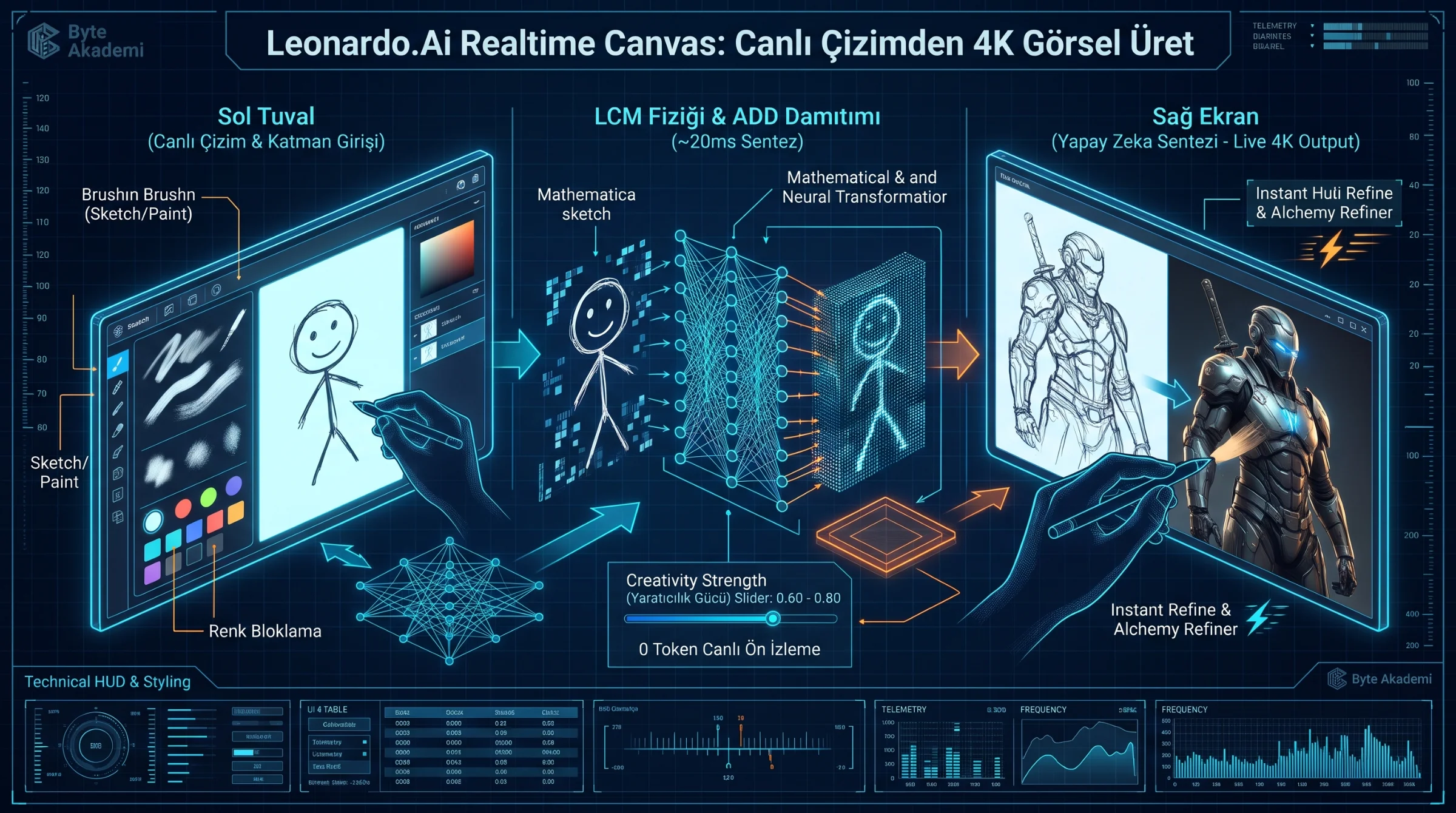
Here is the fundamental truth of generative AI: words are terrible at describing exact 2D spatial coordinates, but a 2-second brush stroke is effortless! To merge the precision of manual composition with the power of neural rendering, the engineering team at Leonardo.Ai built an interactive dual-screen studio: Realtime Canvas. You doodle crude geometric boxes, stick figures, and color blobs on the left canvas, and the AI viewport on the right transforms your rough sketch into a hyper-realistic landscape, 3D game asset, or architectural render in milliseconds—live as you move your mouse! Grab a coffee, and let's unlock the Latent Consistency physics and pro workflow secrets behind Realtime Canvas.
1. From 20 Seconds to 20 Milliseconds: The Physics of Latent Consistency Models (LCM)
Think about how standard AI image generation works: when you hit "Generate" in Phoenix or Midjourney, you wait 15 to 30 seconds because the diffusion solver must compute 30 to 50 sequential denoising steps to clear away Gaussian noise. How on earth does Realtime Canvas update a photorealistic render instantaneously while you drag your brush across the screen?
Under the hood, Realtime Canvas replaces traditional multi-step solvers with Latent Consistency Models (LCM) and Adversarial Diffusion Distillation (ADD):
- PF-ODE Trajectory Distillation (Skipping 40 Steps in 2 Steps): Instead of slowly inching down a winding mountain path over 40 steps, an LCM model is trained to predict the exact end-point of the Probability Flow Ordinary Differential Equation (PF-ODE) trajectory in just 1 to 4 ultra-fast inference steps.
- Continuous Image-to-Image (Img2Img) Tensor Conditioning: Every millisecond you move your brush on the left canvas, the RGB pixel map is encoded into the latent space and fused with your text prompt vector—synthesizing lighting, shadows, and perspective on the fly.
// REALTIME CANVAS: MULTI-STEP DIFFUSION (15s) vs. LCM LIVE SYNTHESIS (~20ms)

// 1. Classical Iterative Diffusion Solver (40+ Steps):
z_0 = z_T + Integral_from_T_to_0 [ Epsilon_theta(z_t, t, Prompt) dt ]

// 2. Realtime Canvas One-Step Latent Consistency Function (~20 Milliseconds!):
z_realtime = f_LCM( Encoder(Sketch_Canvas_RGB), Prompt_Vector, w_creativity )

Sketch_Canvas_RGB : Live Brush Strokes, Shapes & Imported Layer Collage on Left Canvas
f_LCM             : Distilled Consistency Mapping Function (1-to-4 Step Convergence)
w_creativity : Creativity Strength Slider (Balancing Sketch Fidelity vs. AI Detail)Beginners often try to draw thin black pencil outlines on a white background. Remember: diffusion models respond to blocks of color and volume, not wireframes! Select a thick brush, paint a dark blue block across the top for the sky, a grey triangle in the middle for a mountain, and an orange dot at the bottom for a campfire. Watch the right screen instantly erupt into a cinematic 8K night landscape!
Text prompts struggle to describe exact spatial geometry—Realtime Canvas bridges the gap by translating rough mouse strokes and color blocks into real-time 4K renders in under twenty milliseconds.
2. Mastering the Dual-Canvas Cockpit & The "Output-to-Input" Loop
To command Realtime Canvas like a senior concept artist, master these five core controls:
- 1. Left Viewport (Input Sketch & Layer Canvas): Equipped with a freehand brush, eraser, background color picker, and "Add Image" uploader. You can import multiple transparent product photos, arrange them like a collage, and paint shadows around them!
- 2. Right Viewport (Live Neural Mirror): Displays the real-time synthesized output driven simultaneously by your left-canvas pixels and your bottom text prompt.
- 3. Creativity Strength Slider (The Master Dial — 0.10 to 0.90):
- Low Creativity (0.30 – 0.45): Forces the AI to strictly obey your exact brush shapes and uploaded photo contours with minimal hallucination.
- High Creativity (0.65 – 0.85): Allows the AI to treat your clumsy stick figure or rough color blobs as a loose structural guide, inventing rich 3D textures, dramatic lighting, and realistic anatomy!
- 4. The "Output to Input" Feedback Loop: Love what the AI generated on the right screen, but want to add a glowing sword or a hat to the character? Click "Output to Input" beneath the right viewport! This transfers the polished AI render onto your left drawing canvas. Now paint a small cyan streak in the character's hand, update your prompt, and watch the AI seamlessly integrate the new object!
- 5. "Interactive" vs. "Inpaint" Mode: Switching the bottom toggle from Interactive to Inpaint freezes your uploaded photograph so the AI only modifies the exact pixels you brush over in real time.
  [LEONARDO.AI REALTIME CANVAS: THE RECURSIVE "OUTPUT-TO-INPUT" LOOP]

  +----------------------------------+       +------------------------------------+
  | LEFT CANVAS (USER INPUT)         |       | RIGHT VIEWPORT (LIVE AI OUTPUT)    |
  | -------------------------------- | ===>  | ---------------------------------- |
  | 1. Rough Color Blobs & Shapes    | (LCM) | 1. Live Millisecond Scene Render   |
  | 2. + Bottom Text Prompt          | 20ms  | 2. Creativity Strength: 0.70       |
  +----------------------------------+       +------------------------------------+
                   ^                                            |
                   |      [ Click "Output to Input" ]           |
                   +--------------------------------------------+
            (Send AI Render Back to Left Canvas -> Paint New Details -> Re-Render!)
                                                                |
                                                                v (Click "Instant Refine")
                                             +------------------------------------+
                                             | FINAL 4K POLISHED MASTERPIECE      |
                                             +------------------------------------+
3. Workflow Comparison: Interactive Mode vs. Live Inpaint vs. Standard Mode
| Control & Production Metric | Realtime Canvas (Interactive) | Realtime Canvas (Inpaint Mode) | Standard Generation (Phoenix) |
|---|---|---|---|
| Primary Use Case | Building exact scene layouts from rough color blocks & collages | Live regional editing on existing photos or renders | Pure text-to-image synthesis from scratch |
| Spatial Placement Accuracy | 100% Pixel-Locked (Objects appear exactly where you paint!) | 100% Locked to Brushed Mask | Guided by text prepositions |
| Render Latency | Real-Time (~20 – 50 Milliseconds) | Real-Time (~20 – 50 Milliseconds) | 10 – 25 Seconds per Batch |
| Recommended Creativity Strength | 0.60 – 0.80 (To transform rough blobs into art) | 0.50 – 0.75 (For seamless texture blending) | CFG Scale: 7.0 – 8.5 |
| Token Consumption | 0 Tokens While Sketching! (Only costs tokens on 'Instant Refine') | 0 Tokens While Brushing! (Only costs tokens on 'Instant Refine') | 12 – 24 Tokens per Click |
Here is the best part about Realtime Canvas: painting on the left canvas, tweaking prompts, and watching hundreds of live real-time updates on the right screen consumes ZERO daily tokens! You can experiment for hours completely free. Once your composition looks perfect, click the "Instant Refine" (or Alchemy Refiner) button beneath the right viewport to spend a few tokens and upscale the live preview into a razor-sharp 4K asset.