1. From Drag-and-Drop to Prompt-and-Generate: How Canva AI (Magic Studio) Works Under the Hood
For decades, digital graphic design required hours of manual labor: hunting through stock photo libraries, masking hair strands in Photoshop, and manually resizing layouts for every social platform. Canva's Magic Studio ecosystem replaces repetitive manual execution with a unified suite of Generative AI tools, allowing creators, engineers, and marketers to build studio-grade visuals through natural language commands.
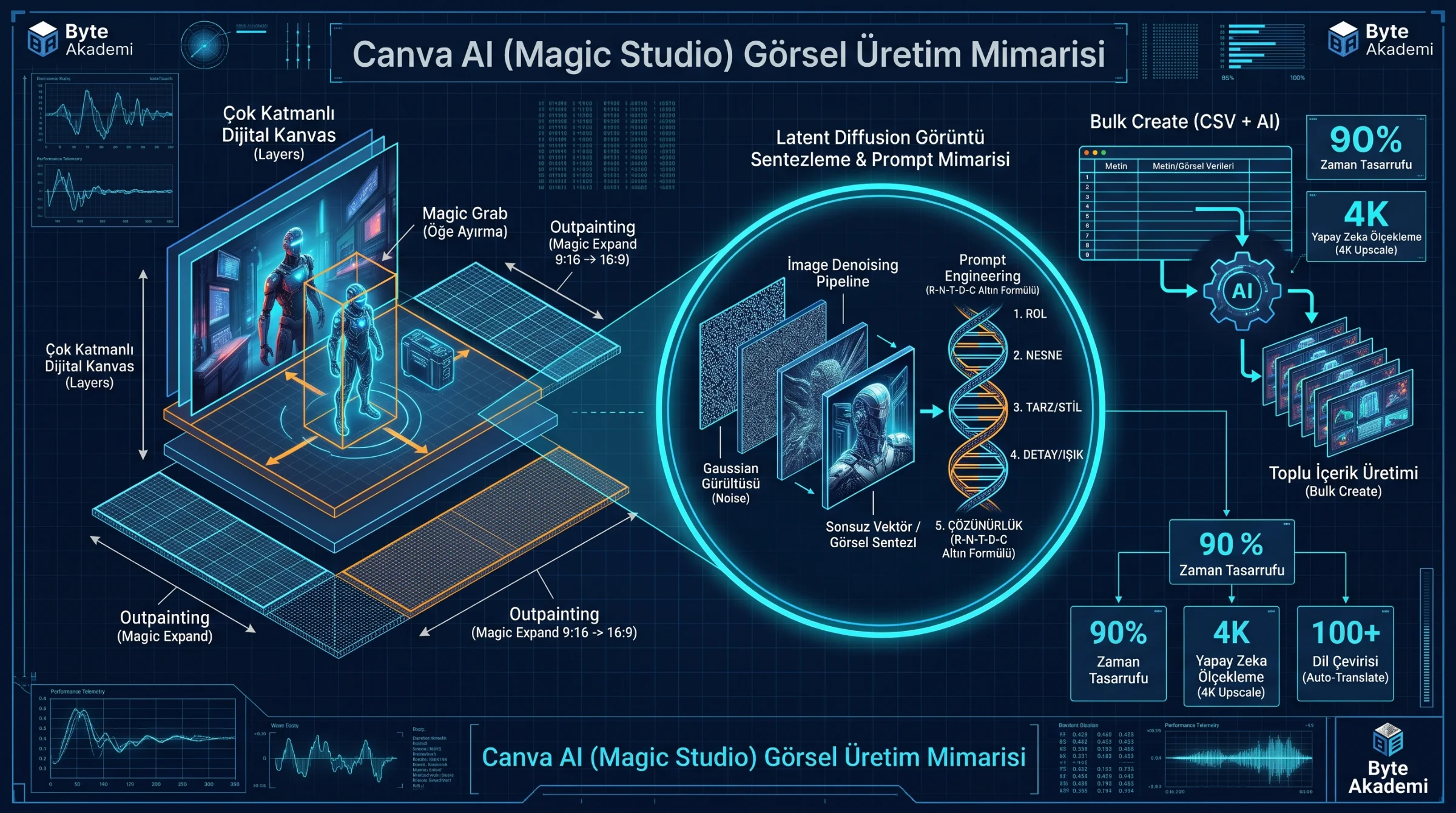
Beneath Canva's intuitive interface lies a three-tier deep learning architecture:
- Latent Diffusion Models (LDM) & Leonardo.Ai Engine: When generating visuals in Magic Media or Dream Lab, your text prompt is encoded into high-dimensional semantic vectors. The diffusion model iteratively denoises a field of random Gaussian pixels over 30 to 50 steps, synthesizing photorealistic imagery, 3D renders, or scalable vector graphics from scratch.
- Convolutional Neural Networks (CNNs) & Semantic Inpainting: Tools like Magic Grab and Magic Eraser construct a real-time depth and segmentation map of your uploaded image. When you detach a foreground subject, generative inpainting algorithms reconstruct the missing background texture seamlessly.
- Large Language Models (LLMs) & Layout Solvers: Magic Design and Magic Write combine copywriting generation with automated typographic hierarchy, color-contrast compliance, and responsive grid alignment.
Transform your creative workflow with Canva AI (Magic Studio). We break down how latent diffusion and semantic segmentation power tools like Dream Lab, Magic Grab, and Magic Expand—complete with copy-paste text-to-image prompt formulas and automated ChatGPT + Bulk Create pipelines.
2. Step-by-Step Guide to Core Magic Studio Tools
When you select any element on your Canva canvas and click "Edit Image" or open the left-hand sidebar, six flagship AI tools unlock advanced editing capabilities:
A. Magic Media & Dream Lab: Text-to-Image, Vector Graphics, and AI Video
Instead of settling for overused stock photos, describe the exact scene you need. Beyond standard raster images, you can switch the generator tab to "Graphics" to produce clean SVG/vector stickers and icons, or select "Video" (powered by Runway Gen-2) to generate 4-second cinematic B-roll clips from a single sentence.
B. Magic Grab & Grab Text: Turning Flat JPEGs into Editable Multi-Layer Files
Click any flat photograph and select Magic Grab. Canva AI automatically isolates the central subject into a movable, resizable foreground layer while filling in the background behind it. Similarly, Grab Text uses Optical Character Recognition (OCR) and background inpainting to lift printed words off a flat image, turning them into live, editable typography.
C. Magic Expand (Generative Outpainting)
Need to turn a vertical smartphone portrait (9:16) into a widescreen website hero banner or YouTube thumbnail (16:9)? Instead of cropping out critical details, Magic Expand analyzes ambient lighting, shadows, and perspective lines to paint the missing surroundings outside the original frame.
D. Magic Edit & Magic Eraser
Brush over unwanted power lines, photobombers, or watermarks with Magic Eraser to vanish them instantly. With Magic Edit, brush over an area and type a replacement prompt (e.g., brushing over a plain wooden table and typing "replace with a sleek matte-black carbon fiber surface").
E. Magic Switch: One-Click Multi-Format Resizing & 100+ Language Translation
Convert a finished presentation slide deck into an executive summary document, or resize an Instagram carousel into a LinkedIn banner and Pinterest pin simultaneously. Built-in neural translation converts all on-canvas text into over 100 languages while preserving exact font pairings and layout geometry.
3. The 5-Part Prompt Engineering Formula for Canva AI Visuals
Typing vague prompts like "a futuristic car" yields generic results. To generate crisp, high-CTR visuals in Magic Media and Dream Lab, apply this structured 5-part visual prompt formula:
// CANVA AI (MAGIC MEDIA & DREAM LAB) MASTER PROMPT FORMULA

[1. SUBJECT & ACTION] + [2. ENVIRONMENT / SETTING] + [3. ART STYLE / CAMERA LENS] + [4. LIGHTING & COLOR PALETTE] + [5. COMPOSITION & FRAMING]

// EXAMPLE 1 (Tech Blog & YouTube Thumbnail Header):
"An electrical engineer inspecting a glowing silicon wafer inside a cleanroom [Subject], surrounded by blurred server racks and holographic telemetry HUDs [Setting], hyper-realistic 8K commercial photography, 35mm f/1.8 lens [Style/Lens], dark navy blue and electric cyan volumetric neon lighting [Lighting/Color], wide-angle shot with clean negative space on the left for bold title text [Composition]."

// EXAMPLE 2 (SaaS / E-Commerce Product Showcase):
"Minimalist matte-black smart speaker resting on a brushed aluminum podium, subtle soundwave ripples in the air, 3D octane render, soft studio rim lighting with warm amber accents, eye-level macro composition."
4. Canva AI Feature Comparison Matrix (Free vs. Canva Pro)
| Canva AI Tool | Core Technical Function | Primary High-Value Use Case | Tier Availability |
|---|---|---|---|
| Magic Media & Dream Lab | Latent Diffusion Text-to-Image, Vector & Video | Custom blog headers, ad creatives, vector icons | Limited Free Credits / High Pro Quota |
| Magic Grab | Subject Segmentation & Background Inpainting | Repositioning products or people inside flat photos | Canva Pro / Teams |
| Magic Expand | Generative Outpainting Beyond Frame Edges | Converting vertical photos into 16:9 widescreen banners | Canva Pro / Teams |
| Magic Edit | Masked Generative Object Replacement | Swapping props, changing wardrobe colors, fixing flaws | Available on Free & Pro |
| Magic Switch | Automated Layout Reflow & Neural Translation | Localizing ad campaigns across 100+ languages & sizes | Canva Pro / Teams |
| Bulk Create + AI | Automated CSV-to-Template Batch Rendering | Generating 50+ social posts or product cards in 60 seconds | Canva Pro / Teams |
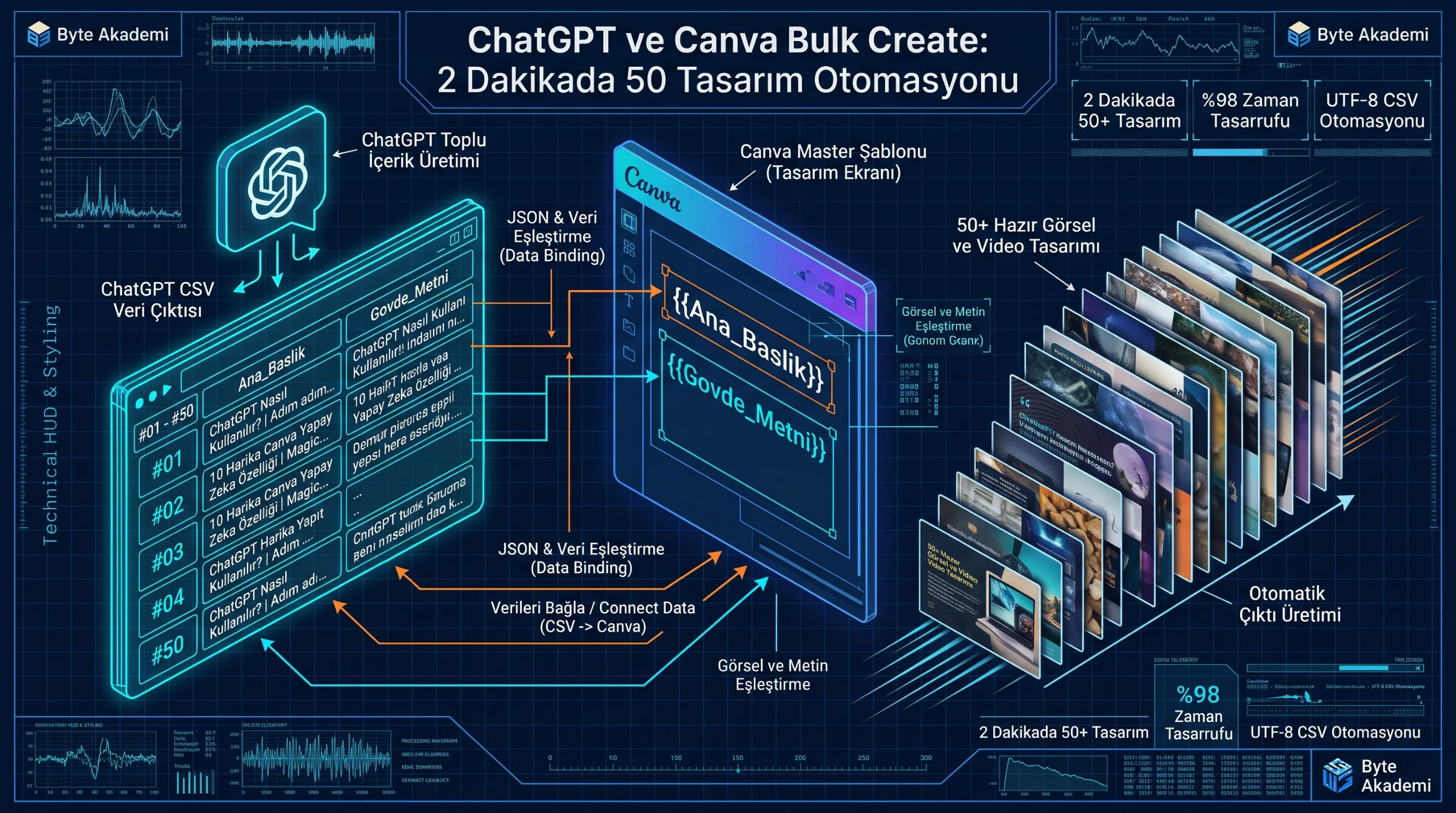
5. Advanced Automation: Combining ChatGPT + Canva "Bulk Create" to Build 50 Designs in 2 Minutes
Power users combine LLM text generation with Canva's batch automation to scale content production effortlessly:
- Generate Structured Data: Ask ChatGPT: "Generate a 30-row table of high-engagement engineering tips with columns for Hook Title, 2-Sentence Explanation, and Call-to-Action. Export as a CSV file."
- Build One Master Template: In Canva, design a single polished card containing placeholder text boxes for your Title and Explanation.
- Map CSV Fields via Bulk Create: Open Apps > Bulk Create on the left sidebar, upload your CSV file, right-click each text box on your canvas, and select "Connect Data."
- Batch Render: Click "Generate 30 Designs." Canva automatically populates all 30 variations into individual pages ready for export.
1. Prompt for "Negative Space": Always instruct the AI generator to leave "clean negative space on the left or right third" so your headline typography remains 100% legible without clashing with busy details.
2. Lock Your Brand Kit: Store your exact brand HEX color codes and primary typography inside Canva's Brand Hub to apply one-click brand consistency across any AI-generated layout.
3. Pair Background Remover with Drop Shadows: After stripping a background with one click, open Edit Image > Shadows > Drop/Glow to ground your subject with realistic spatial depth.
6. Frequently Asked Questions (Commercial Licensing & Resolution)
1. Are images generated with Canva AI safe for commercial use and Google AdSense websites?
Yes. Under Canva's AI Product Terms, original visuals generated via Magic Media and Dream Lab are cleared for both personal and commercial use—including monetized blogs, YouTube thumbnails, and client advertising—provided you do not intentionally prompt trademarked logos or likenesses of real individuals.
2. How do I upscale AI-generated images for high-DPI print or 4K displays?
Navigate to Apps on the left toolbar and launch Canva's built-in Image Upscaler or Enhancer app to double or quadruple pixel resolution (up to 4K) using super-resolution neural networks.