1. Ending Manual Copy-Paste: Variable Data Printing (VDP) and Data-Driven Design
For digital marketers, e-commerce founders, and technical publishers, the biggest bottleneck in content production is not designing the first graphic—it is manually duplicating and editing the next forty-nine. Creating 50 educational carousel cards, 100 localized product promos, or 200 personalized event certificates traditionally requires 3 to 4 hours of tedious copy-pasting and font resizing.
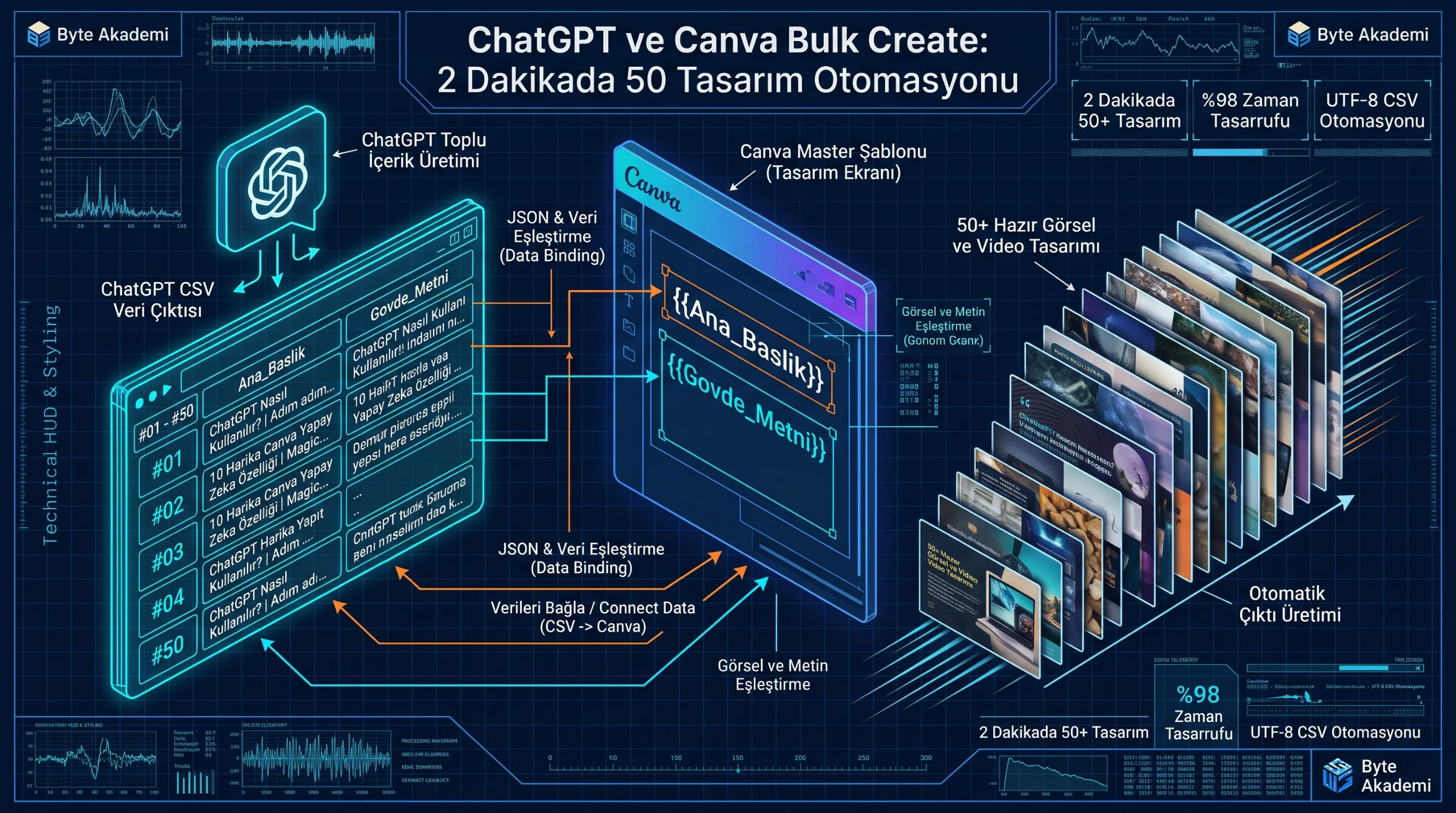
By pairing ChatGPT's structured data generation with Canva's Bulk Create engine, you can build an automated Variable Data Printing (VDP) pipeline. In this architecture, your Canva canvas acts like a dynamic front-end DOM template populated by a back-end CSV database—rendering 50 error-free designs in under 120 seconds.
Every text box and image frame inside a Canva template is stored as a serialized JSON object. When you import a .csv (Comma-Separated Values) dataset, Canva executes an automated for-each loop: it clones the master page for every row in your table and injects each column value into your designated placeholder variables (e.g., {{Headline}}, {{Body_Copy}}).
Connecting ChatGPT's structured CSV arrays to Canva's Bulk Create engine transforms a static layout into a data-driven rendering pipeline—compressing four hours of repetitive templating into two minutes.
2. Step 1: The Master ChatGPT Prompt for Character-Constrained CSV Tables
The #1 reason automated batch designs fail is text overflow: if Row 1 contains a 4-word headline and Row 2 contains a 22-word headline, your layout alignment breaks. To guarantee that all 50 generated cards fit your template without manual tweaking, enforce strict character-count boundaries in your ChatGPT prompt:
// MASTER CHATGPT PROMPT FOR CANVA BULK CREATE (COPY & PASTE)

"Act as a senior content strategist and data architect. Generate a 50-row structured dataset on [TOPIC: e.g., Electrical Engineering / AI Productivity / SaaS Marketing] designed for automated batch rendering.

STRICT COLUMN STRUCTURE & CHARACTER CONSTRAINTS:
1. [Card_ID]       : Sequential number from #01 to #50.
2. [Category_Tag]  : Maximum 2-word uppercase label (e.g., POWER SYSTEMS, AI WORKFLOW).
3. [Main_Headline] : High-CTR hook title. MUST be strictly between 35 and 50 characters!
4. [Body_Copy]     : Concise technical insight. MUST be strictly between 130 and 160 characters!
5. [Footer_CTA]    : Short call-to-action (e.g., Read full analysis at byteakademi.tr).

OUTPUT REQUIREMENT:
First display the table for review, then generate a downloadable UTF-8 encoded .CSV file with properly escaped commas."
3. Step 2: Engineering a "Bulletproof" Master Template in Canva
Before importing your dataset, build one single Master Page in Canva following four structural design rules:
- Keep Text Boxes Un-Combined: Your Category Tag, Main Headline, and Body Copy must live inside separate text boxes so each box can bind to its own CSV column.
- Lock Vertical Alignment & Bounding Boxes: Stretch the width of your text bounding boxes to your safe margins and set vertical alignment to Center or Top-Aligned so 2-line and 3-line variations never collide.
- Calibrate Font Size Using the Longest Row: Paste a 160-character sample sentence into your body box while designing the master template. If the longest row fits cleanly, all 50 rows will fit automatically.
- Use Canva "Frames" for Dynamic Images: If you want to swap product photos or icons across cards, insert a placeholder from Elements > Frames onto your canvas.
  [CHATGPT + CANVA BULK CREATE AUTOMATION PIPELINE]

  +----------------------------------+       +-----------------------------------+
  | 1. CHATGPT DATA ENGINE (LLM)     |       | 2. CANVA MASTER TEMPLATE (DOM)    |
  | -------------------------------- |       | --------------------------------- |
  | [ID] | [Main_Headline] | [Body]  | ===>  |  Badge : {{Category_Tag}}         |
  | #01  | MV Switchgear   | Air...  | (CSV) |  Title : {{Main_Headline}}        |
  | #02  | Tesla 4680 Cell | Dry...  |       |  Copy  : {{Body_Copy}}            |
  | ...  | ... (50 Structured Rows)  |       |  Media : [Dynamic Image Frame]    |
  +----------------------------------+       +-----------------------------------+
                                                               |
                                                               v  (Click "Generate 50 Designs")
                                             +-----------------------------------+
                                             | 3. BATCH OUTPUT: 50 READY PAGES   |
                                             | Pages 1..50 (1080p PNG / PDF /MP4)|
                                             +-----------------------------------+
4. Step 3: Binding Variables and Executing the Batch Render
With your Master Template open on screen, execute the batch merge in four clicks:
- 1. Launch Bulk Create: Open Apps on the left-hand sidebar, search for "Bulk Create," and open the tool.
- 2. Import Your Data: Click "Upload data" to select your UTF-8 CSV file—or click "Enter data manually" and press
Ctrl+Vto paste the table copied directly from ChatGPT. - 3. Bind Text & Image Variables: Right-click your headline text box on the canvas, hover over "Connect data," and select
Main_Headline. Purple curly brackets{{Main_Headline}}will appear, confirming the variable link. Repeat this right-click binding for{{Body_Copy}},{{Category_Tag}}, and{{Card_ID}}. - 4. Generate All Pages: Click "Continue" on the left panel, verify that all 50 rows are checked, and click "Generate 50 designs." Canva immediately spawns a new browser tab containing all 50 finished designs on individual pages.
5. Manual Production vs. ChatGPT + Canva Bulk Create Benchmarks
| Production Metric | Manual Copy-Paste Workflow | ChatGPT + Canva Bulk Create Pipeline |
|---|---|---|
| Time to Produce 50 Visual Cards | 180 – 240 Minutes (3–4 Hours) | 2 – 3 Minutes (98% Time Reduction!) |
| Typography & Margin Consistency | Inconsistent (Manual Resizing Drift) | 100% Uniform via Character-Constrained Prompts |
| Copy-Paste Human Error Rate | High (Duplicate Slides, Missed Edits) | 0% (Direct Row-to-Page Array Mapping) |
| Multilingual Localization (EN / TR / DE) | Hours of Manual Re-Entry | Translate CSV in ChatGPT & Re-Run in 30 Seconds |
| Short-Form Video (Reels / Shorts) Output | Manual Timeline Keyframing | Batch Export 50 Separate MP4 Videos in One Click |
1. Automate Dynamic Product Photos: Inside Bulk Create's manual table view, click "+ Add Image Column" to assign a different product photo or icon from your uploads to each row, then right-click your canvas Frame and select Connect Data.
2. Batch-Render 50 YouTube Shorts / Instagram Reels: Place a looping 7-second background video on your master template and apply the Typewriter text animation to your bound variables. After generating your 50 pages, go to Share > Download > MP4 Video and check "Download pages as separate files" to get 50 ready-to-post vertical videos.
3. Global Font Resize Across All 50 Pages: If you notice you want a slightly smaller font after generating all 50 pages, simply resize the font on Page 1 and click the "Change all" popup button at the bottom of the screen to update all 50 pages simultaneously.
6. Frequently Asked Questions (Troubleshooting & Limits)
1. Why does special punctuation or non-English text look garbled when I upload a CSV?
Standard Excel CSV exports sometimes default to legacy ANSI encoding instead of UTF-8. Either save your file explicitly as "CSV UTF-8 (Comma delimited)" or bypass file uploads entirely by copying the table directly from ChatGPT and pasting it into Canva's "Enter data manually" grid.
2. What is the maximum number of designs I can generate in a single batch?
Canva supports up to 300 pages per document, allowing you to batch-generate up to 300 individual designs in a single run.