As an electrical and electronics engineer, I spend hours every day moving between cells, whether in construction site quantity take-off sheets or in energy consumption simulations. When working with large datasets, the most fundamental law I have learned from experience is this: "The biggest bottleneck in data analysis is not the computer's processor; it is the 2-second delay every time the engineer takes a hand off the keyboard and reaches for the mouse." Every time you reach for the mouse, your focus breaks and your throughput (I/O) drops by half.
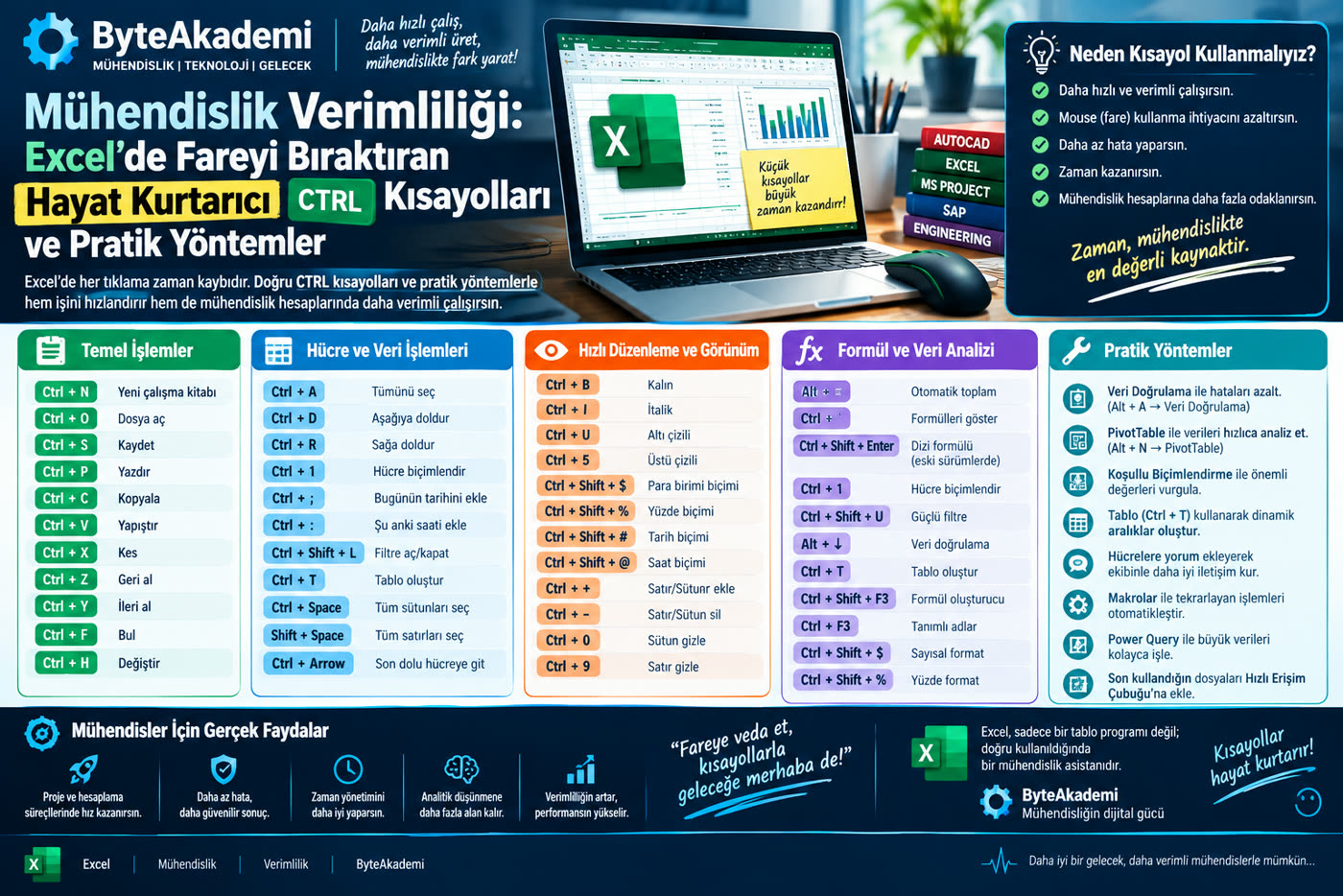
The way to turn Excel into a professional speed machine is to burn the keyboard's CTRL combinations into your muscle memory. We took the critical shortcut map from that notebook page and, instead of leaving it as a random list, broke it down into functional engineering blocks. Here is the hardware-level speed protocol that will let you format, filter and manage tables with hundreds of rows in seconds!
Keyboard shortcuts eliminate mouse dependency on large datasets and multiply processing efficiency.
1. The Secret Weapons of Data Entry and Automation
Instead of losing hours on routine text merging or formula copying, two legendary combinations automate everything:
- Ctrl + E (Flash Fill): Works like Excel's own artificial intelligence. When splitting complex first/last names, employee IDs or e-mail addresses, type the format you want in the first cell and press this key: Excel works out the algorithmic pattern and fills thousands of cells below in milliseconds.
- Ctrl + D (Fill Down): Instantly clones the formula, value or formatting of the cell above into the row below. No more hunting for the fill handle with the mouse to drag a formula.
- Ctrl + T (Create Table): Instantly converts the selected data range into a dynamic table. Banded rows, total rows and filtering are set up in a single keystroke.
- Ctrl + Shift + L (Toggle Filter): Instantly turns the filter arrows in the header row on or off. This is the key you will reach for most when sifting through data.
- Ctrl + Alt + V (Paste Special): Opens the Paste Special dialog directly, so you can paste only values, only formulas or only column widths without getting lost in menus.
2. Cell Formatting and the Number Key Matrix (Ctrl + 0 - 9)
Each number key along the top of the keyboard acts directly on the cell structure, with no need for ribbon buttons:
- Ctrl + 1: Instantly opens the Format Cells dialog. It is the fastest way to format numbers, currencies or dates.
- Ctrl + 2 / 3 / 4 / 5: Instantly apply Bold, Italic, Underline and Strikethrough, respectively.
- Ctrl + 6: Hides or shows all charts and drawing objects on the sheet (a lifesaver in report presentations).
- Ctrl + 8: Hides or shows the outline (grouping) symbols.
- Ctrl + 9: Hides the selected rows.
- Ctrl + 0: Hides the selected columns.
3. Navigating and Selecting 100,000 Rows at Light Speed
Wasting time scrolling the mouse wheel through a telemetry table with tens of thousands of rows is beneath an engineer:
- Ctrl + Arrow Keys: Teleports you instantly to the last edge of the filled cell block in that direction. It does not stop until it hits a blank.
- Ctrl + Home / End: Jumps to the first cell of the sheet (A1) or to the last used cell at the bottom right of your data.
- Ctrl + Space: Selects the entire current column in one move.
- Ctrl + Shift + Space: Instantly selects the whole table area (or the entire sheet) as a block.
- Ctrl + Page Up / Page Down: Lets you switch quickly between the sheets in a workbook without clicking the tabs with the mouse.
Handy Excel Shortcuts Reference Matrix
| Shortcut | Function / Task | Shortcut | Function / Task |
|---|---|---|---|
| Ctrl + A | Select all | Ctrl + G | Go To |
| Ctrl + C / V / X | Copy / Paste / Cut | Ctrl + H | Find and replace |
| Ctrl + Z / Y | Undo / Redo | Ctrl + K | Insert hyperlink |
| Ctrl + F | Find | Ctrl + P | |
| Ctrl + Q | Quick Analysis tools | Ctrl + Shift + L | Toggle filters on/off |
If you add these combinations to your routine one per day, within a week you will notice your mouse use has dropped by 70% and you are flowing through tables as fast as if you were writing code. Speed does not just save time; by protecting your mental focus, it also takes the quality of your data analysis to the top.
Which of the combinations on this list do you actively use in your daily work? What is the favourite Excel shortcut you would say you "could never work without"? Share it in the comments!