Pressing the power button only to watch chassis fans spin at full speed and RGB strips illuminate while your keyboard's NumLock LED stays dark, your mouse optical sensor remains unlit, and the monitor displays "No Signal" is a classic diagnostic trap. Rather than a faulty monitor or GPU cable, completely dead USB peripherals prove that the motherboard stalled during its core Power-On Self-Test (POST) before energizing +5V USB host controllers.
This symptom confirms a No POST (Power-On Self-Test Failure) state—not a display cable issue. Chassis fans spin because they draw power directly from the PSU's +12V rail, whereas USB ports receive +5V power and data signaling only after the CPU and RAM complete initial memory training. Roughly 85% of cases stem from oxidized RAM contacts, corrupted BIOS/CMOS settings, a loose 8-pin CPU EPS power cable, or outdated BIOS microcode.
Table of Contents
- 1. Electrical Split: Why Fans Spin While USB Ports Stay Dead
- 2. POST Pipeline Lockup: Pinpointing the Exact Failure Stage
- 3. The 5 Most Common Hardware Culprits Behind Dead Peripherals
- 4. Symptom & Hardware Diagnostic Comparison Matrix
- 5. Applied Engineering Recovery: Step-by-Step Hardware Wakeup Protocol
- 6. Frequently Asked Questions (FAQ)
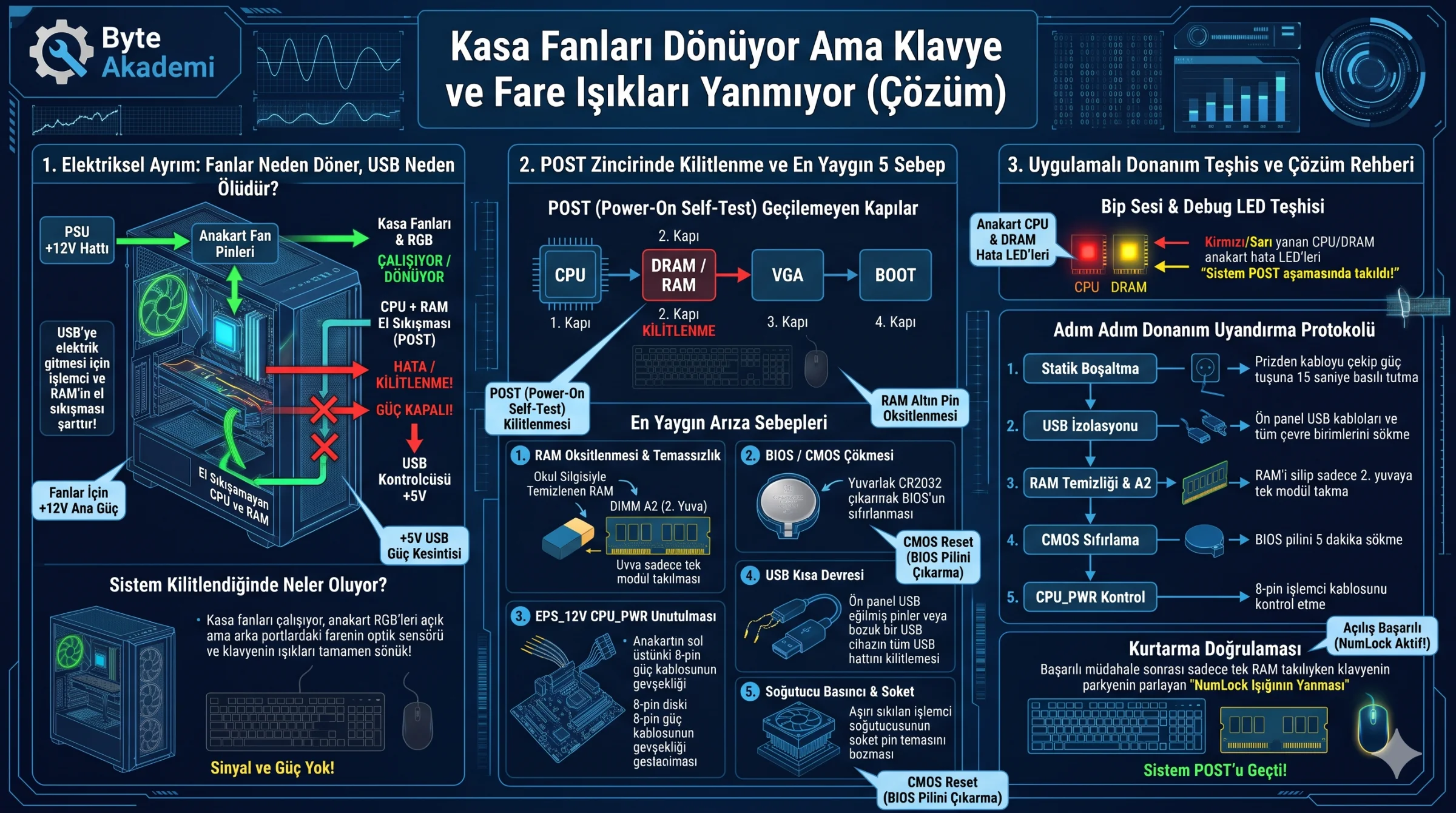
Spinning chassis fans merely confirm that +12V power rails are live; dead keyboard and mouse LEDs prove the motherboard stalled during CPU-to-DRAM initialization before enabling +5V USB host controllers.
1. Electrical Split: Why Fans Spin While USB Ports Stay Dead
Inside a PC, power rails initialize in strict sequence. Chassis fans spin the instant the PSU activates its +12V rail. However, USB 2.0/3.2 ports rely on the motherboard Chipset and CPU USB Host Controller, which remain gated until the processor completes its initial CPU → DRAM handshake. If memory initialization fails, the board halts startup and never opens +5V power gates to peripherals.
  [POWER & DATA GATE STATUS DURING BOOT LOCKUP]

  [ PSU +12V Rail ] ───(Direct Power)───> [ Case Fans & RGB ]    (SPINNING / LIT)
         │
         ▼
  [ CPU + RAM Handshake ] ───(STALLED!)───X───> [ USB Controller (+5V) ] (GATED OFF!)
                                          X───> [ GPU Display Output ]   (NO SIGNAL!)
2. POST Pipeline Lockup: Pinpointing the Exact Failure Stage
Motherboard POST steps sequentially through CPU → DRAM → VGA → BOOT. Dead keyboard LEDs prove the board halted at the CPU or DRAM stage. If only the GPU or display cable were faulty, Windows would still boot in the background and pressing CapsLock or NumLock would toggle the keyboard indicator LED.
3. The 5 Most Common Hardware Culprits Behind Dead Peripherals
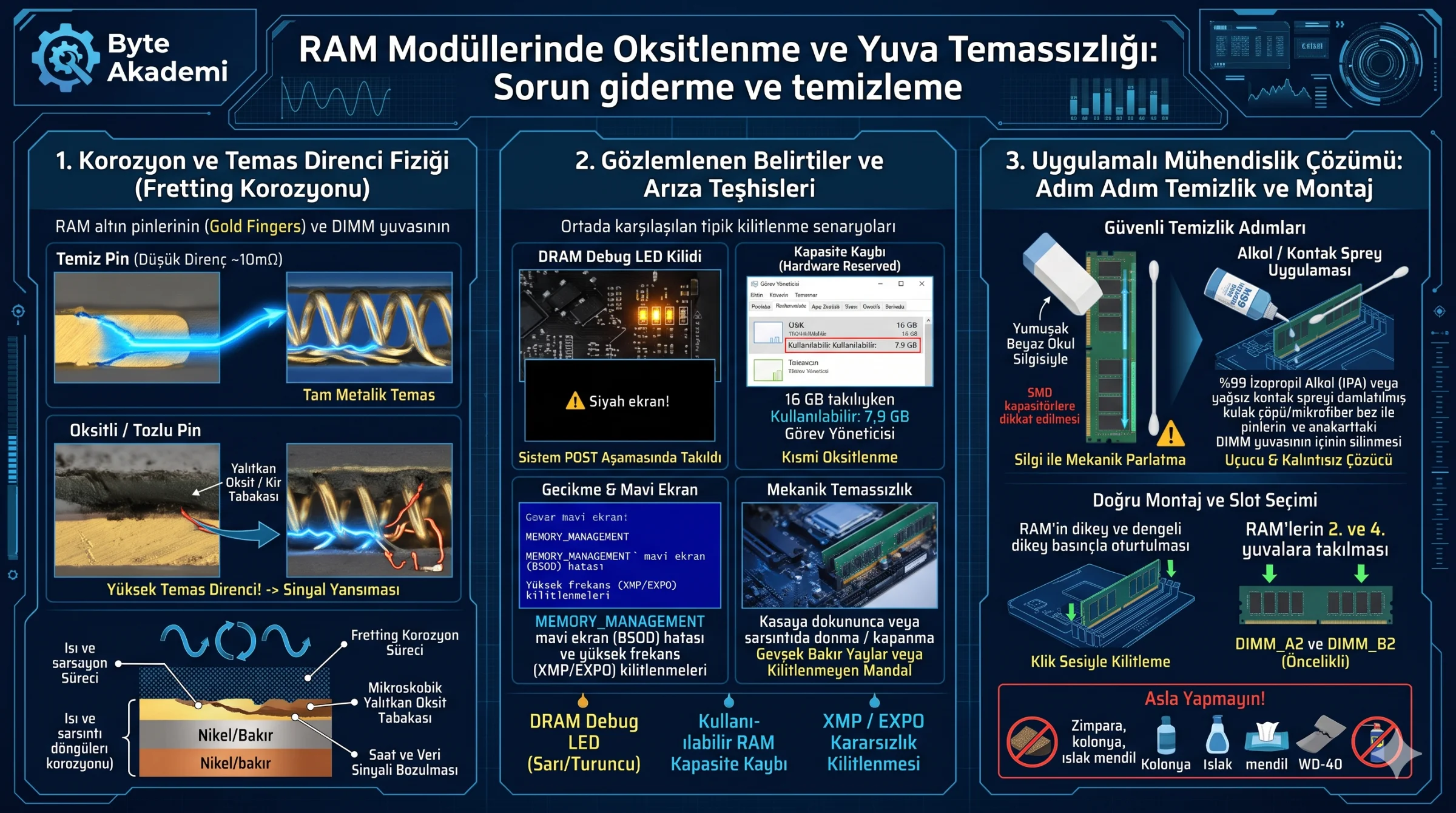
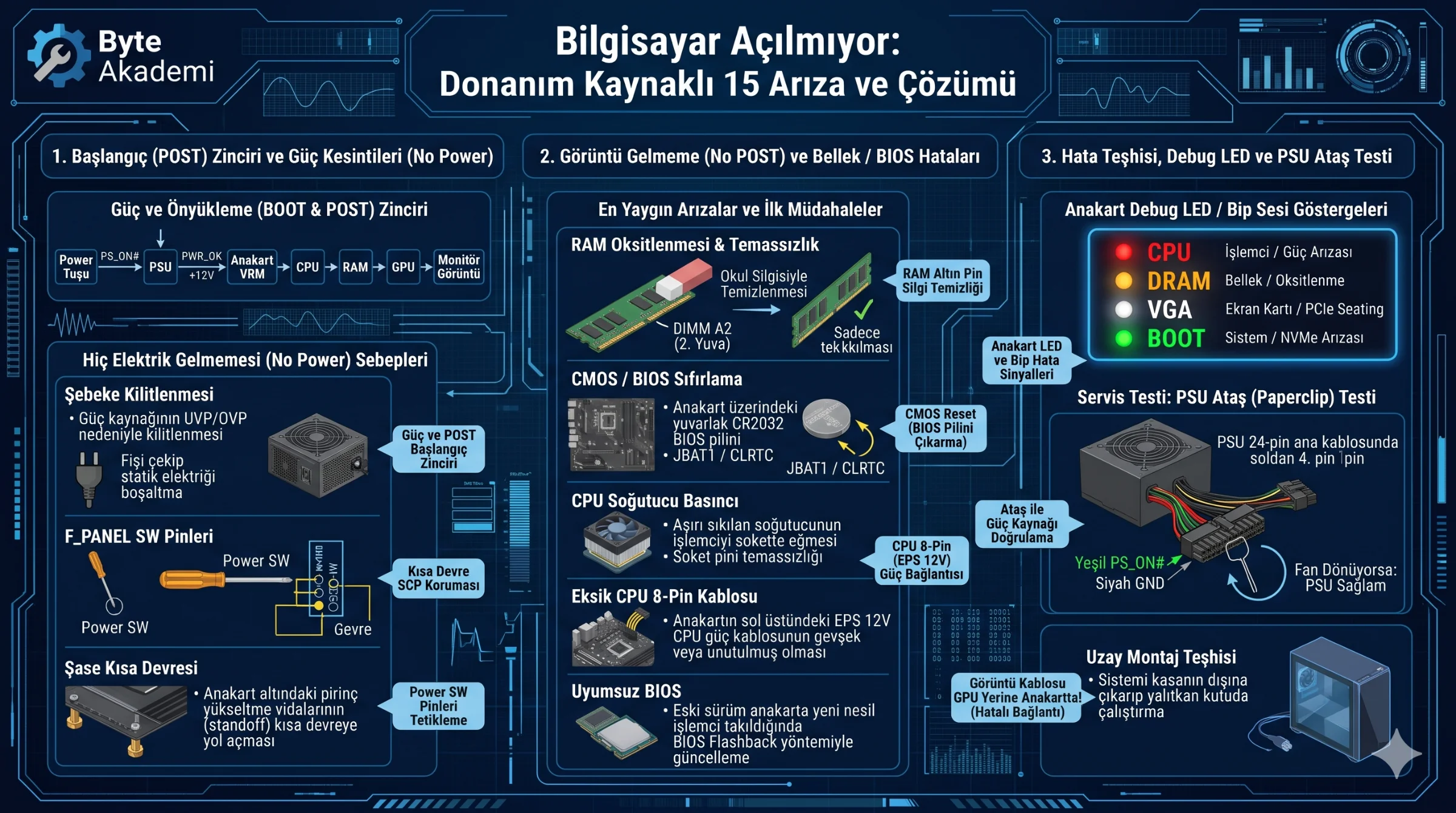
- RAM Contact Oxidation & Memory Training Failure: Microscopic oxidation on gold DIMM contacts blocks memory training; cleaning contacts with a rubber eraser and testing a single stick in slot A2 resolves most lockups.
- Corrupted CMOS / BIOS Configuration: Unstable XMP/EXPO profiles or sudden power loss corrupt NVRAM parameters, requiring a CR2032 battery removal reset.
- Loose CPU 8-Pin (EPS 12V) Cable: Fans spin from the 24-pin ATX connector while processor VRMs remain unpowered.
- Shorted Front-Panel USB Header or Peripheral: Bent USB 3.0 header pins or a shorted USB device trip over-current protection across all USB ports.
- Uneven Cooler Mounting Pressure or Outdated BIOS: Over-tightening one side of a heatsink warps socket contact pins, breaking memory channel traces.
4. Symptom & Hardware Diagnostic Comparison Matrix
| Observed Behavior | Keyboard / Mouse LEDs | Stalled POST Stage | Primary Hardware Culprit | Priority Action |
|---|---|---|---|---|
| Fans spin full speed, black screen | Completely Off | CPU or DRAM Initialization | RAM oxidation, BIOS lockup, loose 8-pin EPS | Clean RAM pins with eraser; test single stick in A2. |
| Fans spin, black screen | NumLock / CapsLock Responsive | VGA (Display Output) | GPU seating, HDMI/DP cable, monitor input | Connect cable to discrete GPU; test alternate cable. |
| Fans spin 3 seconds then shut off | Flashes briefly | Power Regulation / Short | Standoff chassis short, PSU protection latch | Drain static charge; test motherboard on cardboard. |
| Fans high RPM, RGB lit | Completely Off | BIOS Microcode / DDR5 Training | Outdated BIOS or 3-min DDR5 memory training | Wait 3 mins on DDR5; otherwise use BIOS Flashback. |
5. Applied Engineering Recovery: Step-by-Step Hardware Wakeup Protocol
  [STEP-BY-STEP HARDWARE WAKEUP PROTOCOL]

  STEP 1 (Static Drain)  : Unplug AC power cord and hold case power button for 15 seconds.
  STEP 2 (USB Isolation) : Unplug front-panel USB headers and all rear USB peripherals.
  STEP 3 (RAM Cleaning)  : Remove DIMMs, gently rub gold contacts with a soft rubber eraser,
                           and seat a single stick firmly in slot 2 (DIMM_A2).
  STEP 4 (CMOS Reset)    : Remove the round CR2032 motherboard battery for 5 minutes.
  STEP 5 (EPS Check)     : Reseat the top-left 8-pin CPU_PWR cable until the latch clicks.
6. Frequently Asked Questions (FAQ)
Will replacing the HDMI or DisplayPort cable fix dead keyboard and mouse lights?
No. A faulty video cable only blocks monitor output; it never cuts +5V power to motherboard USB ports. Resolve the internal RAM or BIOS POST lockup first.
Why do keyboard LEDs stay lit when the PC is off, then turn off when I press power?
When shut down, the PSU's +5VSB (Standby) rail powers USB ports if ErP is disabled. Pressing power switches to main power rails; if the board stalls during CPU/DRAM checks, it resets USB controllers and cuts peripheral LEDs.
Can a single faulty RAM stick prevent all USB ports from lighting up?
Yes. In dual-channel kits, a single damaged DIMM or oxidized pin halts memory controller initialization across the entire board. Testing one module at a time in slot A2 immediately isolates the defective stick.