When a computer feels sluggish, games suffer sudden frame-time spikes, or opening twenty browser tabs locks up the desktop, conventional advice always points to one quick fix: "Install more RAM to speed up your PC!" Yet after upgrading from 16 GB to 32 GB or 64 GB, many users observe zero change in boot times, average gaming frame rates, or rendering speeds. Why does doubling memory capacity often leave raw compute speed untouched?
No, not directly. RAM (Random Access Memory) is not an arithmetic processor; it is a high-speed temporary workbench for the CPU. If your active workloads stay below 85%–90% of existing capacity, adding extra gigabytes yields zero speed or FPS gains. Upgrading RAM only restores performance when physical memory saturates, preventing the OS from paging data onto vastly slower storage drives (Pagefile / Swap).
Table of Contents
- 1. Workbench Physics: Capacity (GB) vs. Bandwidth (GB/s)
- 2. Memory Saturation: Pagefile Swapping & Latency Penalties
- 3. What Actually Accelerates RAM: Dual-Channel, MT/s & CAS Latency
- 4. OS Memory Intelligence: How Windows & Linux Utilize Free RAM
- 5. RAM Capacity Technical Comparison Matrix by Workload
- 6. Applied Engineering Analysis: Calculating Pagefile Bottlenecks
- 7. Frequently Asked Questions (FAQ)
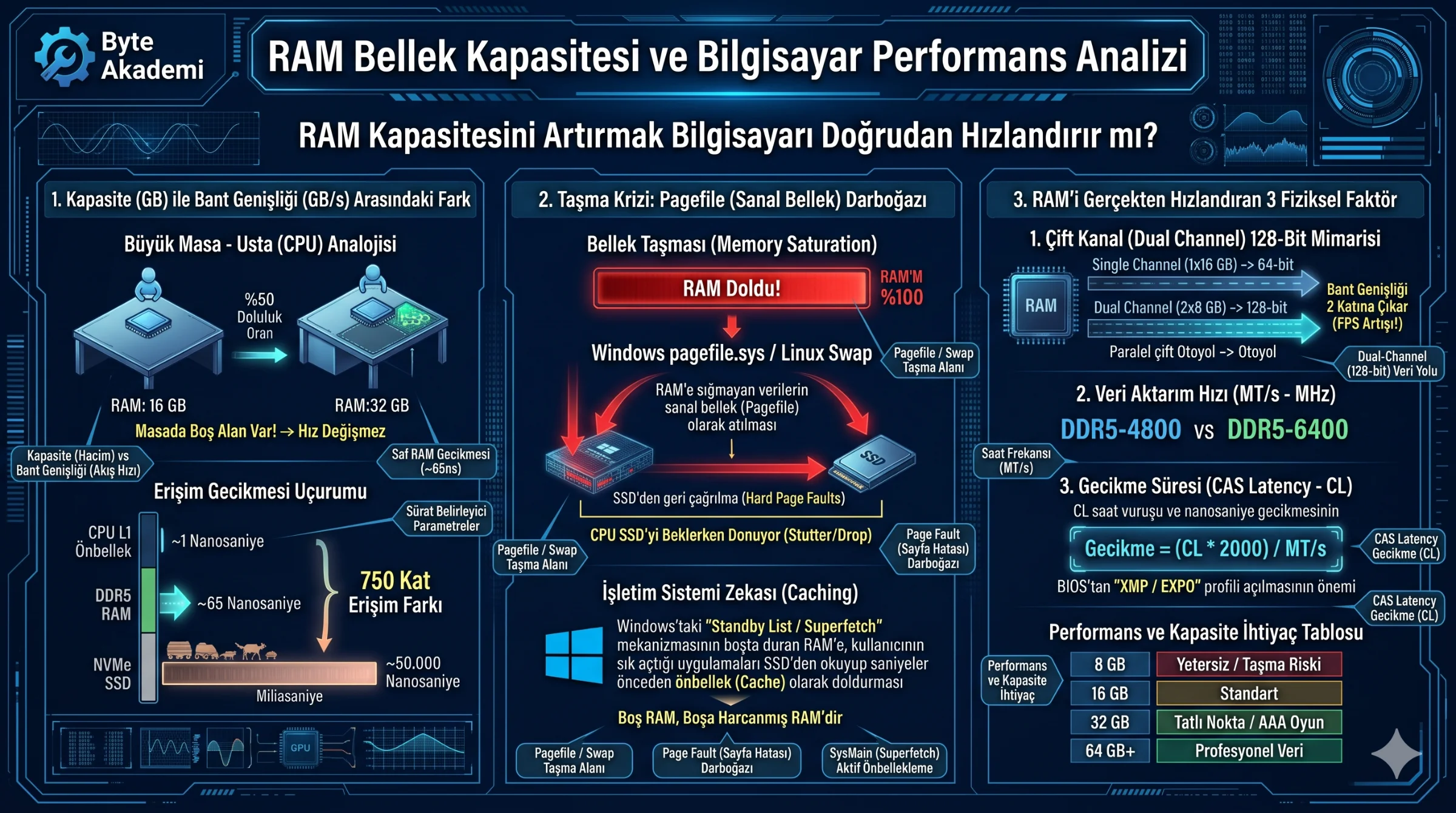
RAM capacity is not engine horsepower; it is the surface area of a workbench. If your current desk is not overflowing, buying a wider table will not make the craftsman work faster.
1. Workbench Physics: Capacity (GB) vs. Bandwidth (GB/s)
In computer architecture, storage capacity and transfer bandwidth govern completely different bottlenecks. Think of the CPU as a craftsman working at a bench (RAM), while the NVMe SSD is a warehouse across the room. If a 16 GB workbench easily holds every active tool and blueprint without clutter, installing a 32 GB bench will not make the craftsman's hands move faster. Throughput depends on reach latency and transfer lanes, not square footage.
  [MEMORY HIERARCHY ACCESS LATENCY GAP]

  CPU L1 Cache     : ~1 Nanosecond       (Baseline: 1 Second)
  System RAM (DDR5): ~65 Nanoseconds     (1-Minute walk)
  NVMe M.2 SSD     : ~50,000 Nanoseconds (3-Week cross-continental trek!)
2. Memory Saturation: Pagefile Swapping & Latency Penalties
Upgrading capacity produces dramatic results only under severe Memory Pressure. When video editors, virtual machines, and browser tabs exhaust physical DRAM capacitors, the OS kernel offloads inactive memory pages to pagefile.sys (Windows) or Swap space (Linux) on the SSD. Because even flagship NVMe SSDs exhibit roughly 750x higher access latency than DRAM, triggering hard page faults stalls CPU execution threads—causing severe desktop stutter that extra RAM completely eliminates.
3. What Actually Accelerates RAM: Dual-Channel, MT/s & CAS Latency
When capacity is unthrottled, genuine memory speed comes from three physical metrics:
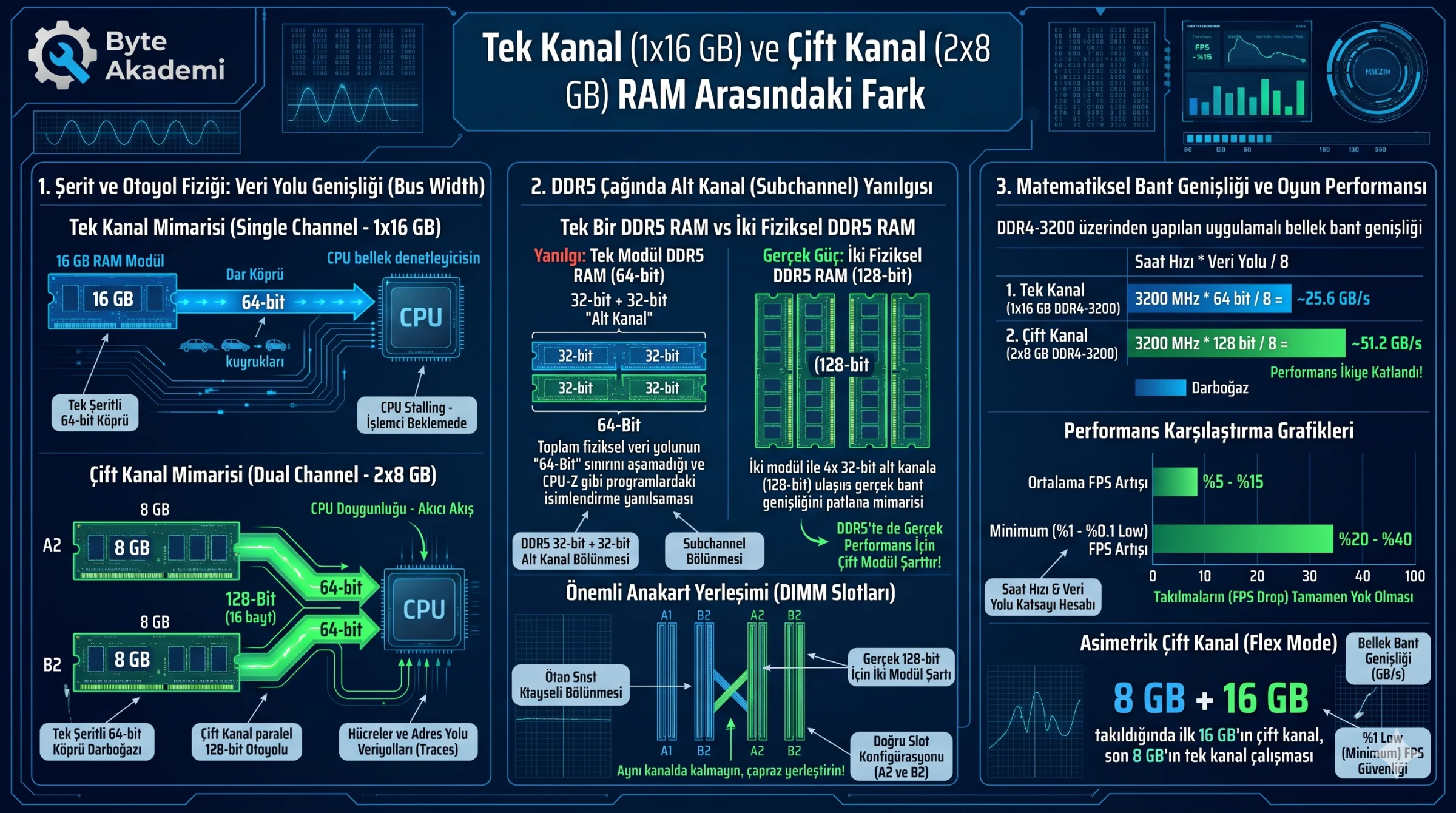
- Dual-Channel Architecture (128-Bit Bus): A single 16 GB stick communicates over a single 64-bit channel. Installing matched pairs (2x8 GB) engages Dual-Channel mode, widening the bus to 128-bit, doubling theoretical bandwidth, and boosting CPU-bound gaming frame rates by 15% to 25%.
- Transfer Rate (MT/s): Stepping up from DDR5-4800 to DDR5-6400 increases raw data transfers per second by 33%.
- True CAS Latency (Nanoseconds): Real-world response time depends on both clock speed and CAS Latency (CL):
True Latency (ns) = (CL * 2000) / Data Rate (MT/s).
4. OS Memory Intelligence: How Windows & Linux Utilize Free RAM
Seeing 45% RAM usage at idle is intentional design. Operating systems follow the principle that "unused RAM is wasted RAM." Windows SysMain (Superfetch) and Standby Lists pre-load frequently used binaries from SSD into idle DRAM, accelerating repeat application launches while instantaneously releasing cached pages whenever active programs demand space.
5. RAM Capacity Technical Comparison Matrix by Workload
| Capacity Tier | Target Workload | SSD Pagefile Risk | Upgrade Speed Impact | Engineering Verdict |
|---|---|---|---|---|
| 8 GB RAM | Basic office, email, light browsing | Severe (Saturates easily) | Massive (Eliminates freezes) | Insufficient for modern OS multitasking; upgrade to 16 GB. |
| 16 GB RAM | Mainstream gaming & daily multitasking | Low / Moderate | Minimal average FPS gain; smoother frame times | Must be configured as 2x8 GB Dual-Channel. |
| 32 GB RAM | AAA gaming, 4K editing, code compilation | Very Low (Workloads stay in DRAM) | High responsiveness & aggressive OS file caching | The optimal sweet spot for modern enthusiast systems. |
| 64 GB+ RAM | 3D rendering, local AI LLMs, virtual machines | Near Zero | Beneficial strictly for massive datasets | Unnecessary expense for standard gaming and desktop tasks. |
6. Applied Engineering Analysis: Calculating Pagefile Bottlenecks
  [MEMORY OVERFLOW & LATENCY COST ANALYSIS]

  Scenario: 16 GB physical RAM saturated; OS pages 4 GB onto NVMe SSD Pagefile.

  1. Native DDR5 DRAM Read Latency  = ~65 Nanoseconds (0.000065 ms)
  2. NVMe SSD Pagefile Read Latency = ~50,000 Nanoseconds (0.05 ms) + Kernel IRQ Overhead

  Result: Memory access latency spikes by at least 750x during hard page faults!
          If Task Manager > Performance > Memory shows "Committed" exceeding physical RAM,
          upgrading capacity will immediately restore lost system speed.
7. Frequently Asked Questions (FAQ)
What happens if I mix RAM sticks of different brands or speeds?
Total capacity increases, solving overflow freezes, but the motherboard memory controller downclocks all modules to match the slowest stick's frequency and loosest timings—and mismatched ICs risk BSOD instability.
Should I disable the Windows Pagefile if I have 32 GB or 64 GB of RAM?
No. The Windows kernel and memory-intensive applications rely on an active pagefile to back virtual commit charges; disabling it can trigger abrupt out-of-memory crashes even when physical DRAM appears free.
Why does Task Manager report my RAM speed at half its advertised rating?
DDR (Double Data Rate) transfers data on both rising and falling clock edges, meaning DDR5-6000 operates at a 3000 MHz base clock. Ensure XMP (Intel) or EXPO (AMD) profiles are enabled in BIOS so modules do not default to base JEDEC speeds.