One of the biggest myths that crosses people's minds when building a new system or upgrading an old computer is this: "If I install a high-speed M.2 NVMe SSD, will I get higher FPS in games? Will my graphics card run faster?"
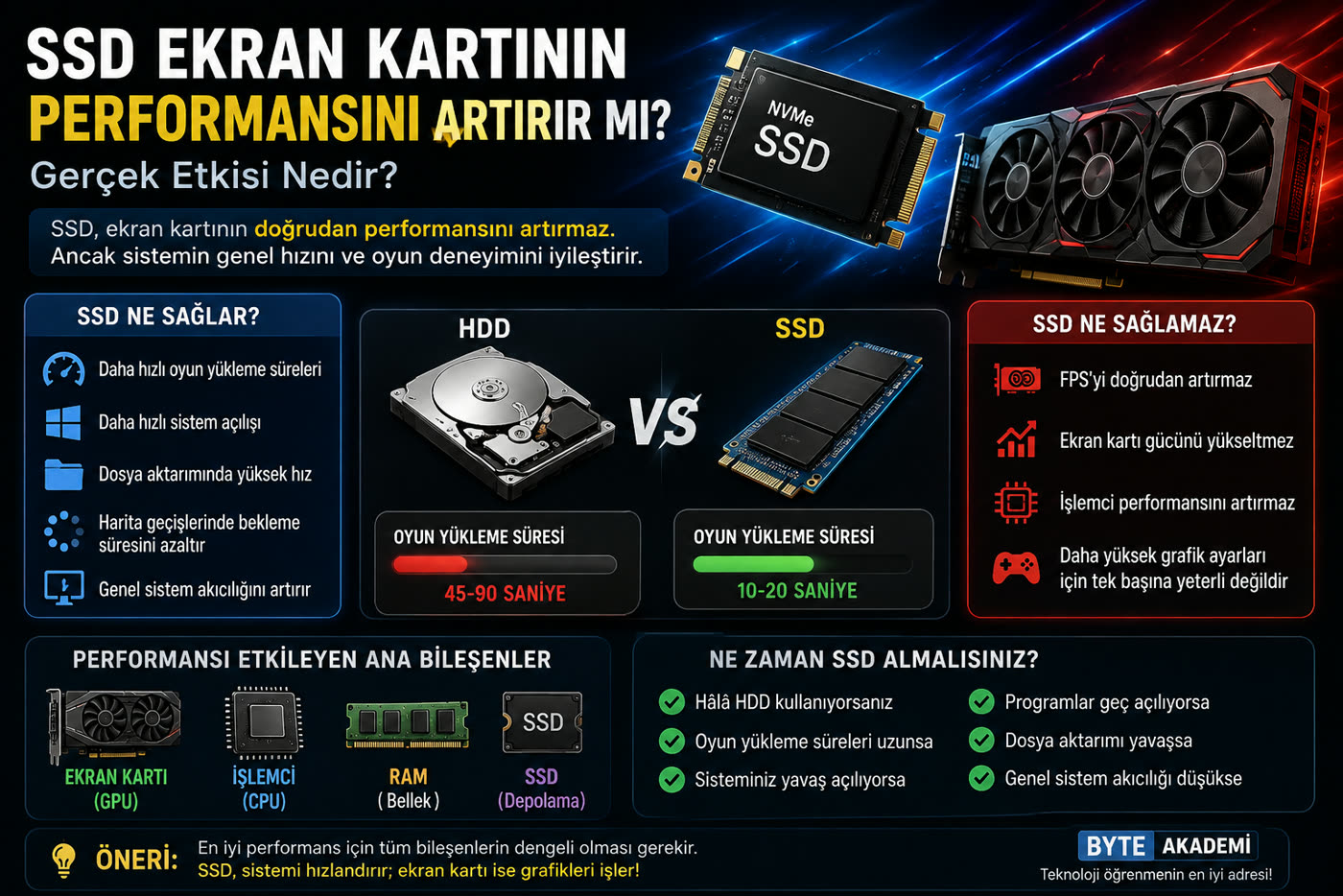
As a computer and electrical-electronics engineer, my short answer to this question is clear: No, an SSD does not directly increase FPS or the raw horsepower of your graphics card. But once we step into the technical kitchen, into the data paths (PCIe lanes) and the memory hierarchy, we see how fundamentally an SSD changes the overall smoothness of the system and the gaming experience. Let's take a deep look at how these chips, which move gigabytes of data every second, relate to the graphics card.
The golden rule of performance: no single component in a system works miracles on its own; balance is everything.
1. The Render Pipeline: How Is Data Processed?
To understand why an SSD doesn't directly increase FPS (frames per second), you need to know how a game scene is drawn on screen. In computer architecture, data moves through a hierarchy:
- 1. Storage (SSD/HDD): The game's textures, audio files and 3D models live here permanently.
- 2. System Memory (RAM): The processor (CPU) reads the files it will need from the SSD and moves them into RAM, which is far faster to access.
- 3. Video Memory (VRAM): The graphics card pulls the data for the scene it is about to draw from system RAM into its own ultra-fast GDDR (VRAM) chips.
- 4. GPU Cores: The thousands of parallel cores we discussed in our GPU architecture analysis process this data in VRAM, turn it into pixels and send it to the monitor.
Here is the key point: when the graphics card renders a frame, it takes the data it needs not from the SSD but from its own VRAM or system RAM. In other words, once the data has reached VRAM, the card's graphics processing speed is completely independent of the SSD's speed. That is why an SSD won't let you push your graphics settings to Ultra or lift your raw FPS from 60 to 80.
2. So What Does an SSD Actually Do? The Hidden Cure for Bottlenecks
Performance doesn't just mean "maximum FPS." Modern games and heavy simulation software (AutoCAD, Revit, etc.) are enormous. While mechanical hard drives (HDDs) introduce delays of several milliseconds because of their moving read heads, SSDs built on flash chips respond within microseconds.
| Criterion | Mechanical Drive (HDD) | M.2 NVMe SSD |
|---|---|---|
| Game Load Time | 45 - 90 Seconds | 10 - 20 Seconds |
| Texture Streaming | Blurry textures that load late, sudden hitches. | Instantly loaded textures, seamless open-world transitions. |
| System Startup (Boot) | Minutes of waiting for the desktop. | A fully ready system within seconds. |
| Pagefile (Virtual Memory) Response | When RAM fills up, the system grinds to a near freeze. | Virtual memory swapping is handled smoothly. |
3. Stuttering and the 1% Low FPS Metric
Sometimes, even when your graphics card shows 100 FPS in a game, you feel the screen suddenly freeze and the smoothness vanish. This is called "stuttering," and the number one culprit is slow storage.
In open-world games, as you move across the map, huge new texture files are streamed in the background from the SSD/HDD into VRAM. If your storage is an HDD, it simply cannot deliver this massive data in time. The graphics card sits idle waiting for the data to arrive and cannot produce frames. The result: sudden FPS drops! An SSD eliminates this bottleneck by pushing data throughput (I/O) to 7000+ MB per second, dramatically improving your 1% low FPS figures and delivering a smooth gaming experience.
Modern technology is partly turning the myth into reality! Normally, compressed game files coming from the SSD first go to the processor (CPU), get decompressed, and are then sent to the graphics card (GPU). In new-generation games that support DirectStorage API, however, PCIe 4.0/5.0 NVMe SSDs bypass the CPU entirely and send the data directly to the GPU's VRAM. The GPU's own decompression engines process it. This architecture is the biggest engineering step yet in tying SSD speed directly to graphics card efficiency.
4. Balancing the Key Components That Shape Performance
No single component can work miracles on its own. Think of your system as a football team:
- Processor (CPU): Calculates the game's physics, AI and game logic.
- Graphics Card (GPU): Draws the 3D textures, lighting and pixels of the scene the processor has prepared.
- RAM: Temporarily holds the active game files and operating system data in use at that moment.
- SSD: Eliminates the waiting time (load time) for all of this data.
- Power Supply (PSU): Feeds the whole orchestra with clean, low-ripple and stable current.
Conclusion: When Should You Buy an SSD?
If your operating system feels sluggish despite a modern, powerful graphics card, if map transitions in games give you enough time to brew a coffee, and if you suffer sudden FPS hitches, your system is screaming about a bottleneck.
In short, buying an M.2 NVMe SSD won't raise your graphics quality (ray tracing, 4K resolution), but by delivering the smooth data stream your graphics card deserves instantly, it takes "overall system responsiveness" to its peak.
When you first switched from a mechanical hard drive (HDD) to an SSD, what was the biggest difference you felt? Where did you first notice that huge leap in game load times? Let's share our hardware stories in the comments!