Windows 11's modern, polished interface may offer a great visual experience for everyday users, but for the engineers, developers and system administrators working behind the scenes, it can turn into a real nightmare. Thanks to Microsoft's years-long indecision, system settings are scattered between the "modern Settings app" and the old "Control Panel." Having to surf through menus just to change an advanced network adapter setting or edit environment variables is one of the biggest time sinks for professionals.
This is exactly where that hidden structure comes in, known in internet folklore as "God Mode" but officially called the "Windows Master Control Panel" in Microsoft's documentation. Bringing together more than 200 administrative tools buried deep in the operating system into a single folder, this module is actually a clever engineering shortcut that leverages the Windows Registry architecture. Let's look in detail not just at "how to enable" this mode, but at what it actually does and which critical settings it contains, something ordinary blogs never mention.
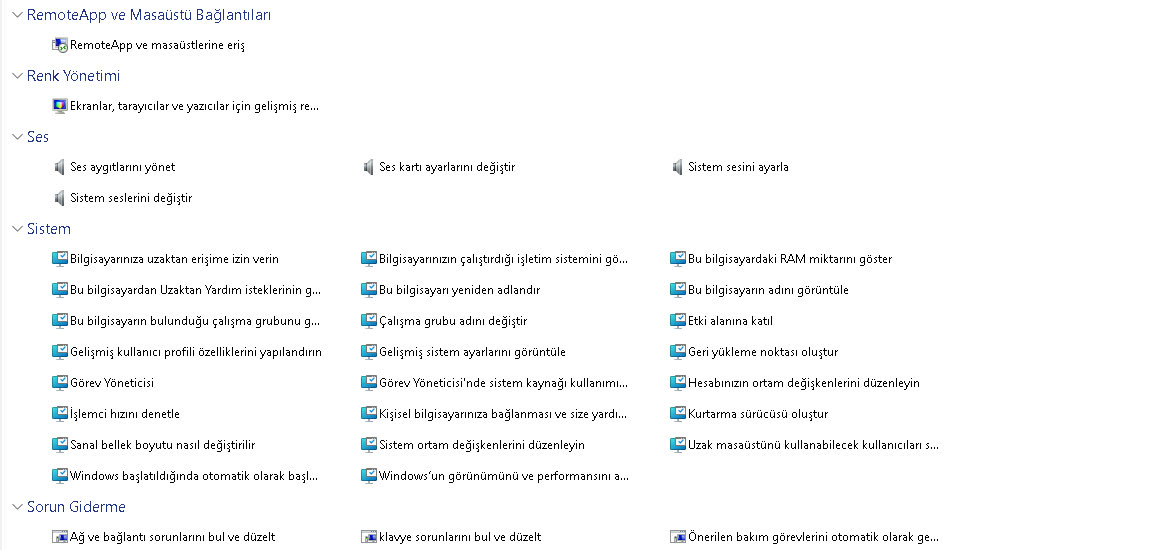
Modules under the System section, such as Advanced System Settings, Virtual Memory and Environment Variables, are critical functions that take minutes to reach through the standard settings.
What Is God Mode Really? (The CLSID Architecture)
Calling this feature "God Mode" is pure internet exaggeration. What we're actually doing is invoking 32-character globally unique identifier codes in the Windows Registry known as CLSIDs (Class IDs). Windows identifies every Control Panel item running in the background (for example, Device Manager or Power Options) by these CLSID codes.
When you create a folder on the desktop and name it GodMode.{ED7BA470-8E54-465E-825C-99712043E01C}, Windows Explorer (explorer.exe) reads the code after the dot. This special CLSID starting with ED7BA470... points to the "All Tasks" class. The moment the operating system sees this code, it removes the folder icon and fills the folder with every Control Panel module registered on the system. (Note: you can write "ByteAkademi" instead of "GodMode"; what matters is the code inside the curly braces.)
What Does This Interface Offer? Hidden Engineering Settings
Most sources online brush this menu off with simple headlines like "change your keyboard speed" or "make the mouse pointer bigger." Yet, as the image above clearly shows, the features under the System category are the lifeblood of software developers and hardware engineers. Here are the critical engineering functions you can reach in seconds from the God Mode panel, ones that ordinary users don't know about:
Software developers (Python, Node.js, Java) know this well: when you install a programming language or compiler, you have to add the directory where it is installed to the "PATH" variable so you can run it from any folder via CMD or Terminal. Normally you'd follow the tedious 4-5 step route "This PC > Properties > Advanced System Settings > Environment Variables"; through God Mode, you get there in a single click.
2. Customizing the Virtual Memory (Pagefile) SizeAs you may recall from our article on the SSD and VRAM bottleneck, when system RAM fills up, the disk is used as temporary memory (the pagefile). On systems with 8GB or 16GB of RAM, running Adobe Premiere or heavy 3D games can suddenly crash the system. By clicking the "How to change the size of virtual memory" entry in the Master Control Panel, you can manually allocate a fixed amount of space on your SSD, such as 10 GB - 20 GB, to virtual memory and put "out of memory" errors to rest for good.
3. Advanced Event Viewer and ReliabilityIs your system's sudden reboot caused by the PSU (power supply), or did your graphics card driver crash? The event logs under the "Administrative Tools" category record critical hardware errors such as Kernel-Power (Event ID 41) second by second. The first step in troubleshooting isn't guessing; it's reading the logs.
4. Remote Desktop and Connection PermissionsIf you want to connect from your laptop to your main server at home or to the powerful workstation at the office, you need to configure firewall and port permissions. The entries you see in the image, "Select users who can use remote desktop" and "Allow remote access to your computer", are settings gateways that corporate IT departments and server administrators use dozens of times a day.
5. Windows Credential ManagerTired of Windows stubbornly asking for a password every time you open a shared network folder (SMB) or a NAS (Network Attached Storage) device? The Credential Manager inside God Mode is Windows' secret vault. Add your network IP, username and password here once, and you'll access the servers on your local network at lightning speed without ever being asked for a password again.
The Real Power: Fast Filtering and Search
You might think, "I can find these settings by typing into the Start menu too." But Windows 11's Start menu search often mixes in web results (Bing) or fails to find the system setting you're looking for because of indexing problems.
Once you create the God Mode folder, the search box in the top-right corner filters local system modules directly. Type just "IP" into the search bar and the network adapter settings are listed; type "Power" and the USB selective suspend menu (the critical setting that stops external sound cards and drives from suddenly disconnecting) appears in front of you within seconds. This structure is a true command center designed for users who "know what they're doing."
Is there a menu in the Windows interface that makes you think, "It's torture finding this setting"? Create the God Mode folder, find that setting inside it and share it with us in the comments. You might just uncover a productivity secret all of us have overlooked!