For the average computer user, Windows 11 is nothing more than colorful windows, a centered Start menu and a polished interface that launches apps. But dig into the depths of the operating system and you'll find incredible diagnostic and performance tools that Microsoft has built into the core (kernel) for system administrators, software developers and hardware engineers.
If you're ready to move past the glossy parts of the interface and step into the world of the "command line" and "hidden directories," we're laying out the lesser-known hidden features of Windows 11 that analyze system crashes second by second, break through data transfer bottlenecks and isolate suspicious software.
Hidden Windows tools armed with administrator privileges cut debugging sessions that would take hours down to seconds.
1. Reliability Monitor: An X-Ray for Blue Screens
When your system crashes suddenly or throws a blue screen (BSOD), you get lost among thousands of meaningless log codes in the standard Event Viewer. Instead, Windows has a hidden interface that tracks system stability graphically.
- How to Open It: Press
Win + R, typeperfmon /reland hit Enter. - Engineering Benefit: It assigns the system a stability score from 1 to 10. On a timeline, it instantly shows which graphics card driver crashed and at what time, or after which Windows update the system started throwing errors.
2. A Disposable Virtual Machine: Windows Sandbox
To test a suspicious file, software of unknown origin or code you've just written without harming your main system, you don't need to install heavy virtual machine programs (VMware/VirtualBox).
In the Turn Windows features on or off menu, tick the "Windows Sandbox" box. Within seconds, this feature opens an isolated, clean Windows session for you. Paste the suspicious file there and run it. The moment you close the window, all data in the virtual session is permanently wiped; no malicious code can leak onto your main hardware.
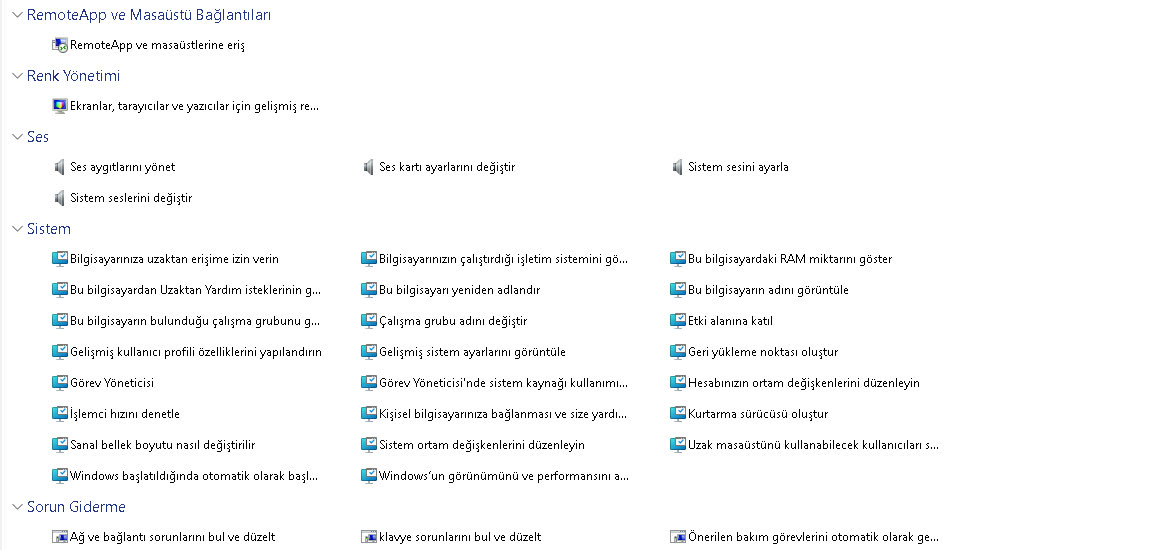
3. God Mode: 200+ Settings in a Single Folder
One of the most criticized aspects of Windows 11 is that its settings are scattered between the "Control Panel" and the new "Settings" app. If you find yourself lost in menus trying to reach network adapters or disk management, "God Mode" is exactly what you need.
- Activation: Create a new folder on the desktop and rename it exactly as follows:
GodMode.{ED7BA470-8E54-465E-825C-99712043E01C} - The folder's icon will change instantly. Open it and more than 200 advanced management modules, including power management, IP configuration, disk partitioning and encryption, are laid out in front of you alphabetically.
4. Hidden Hardware Energy Analysis (Powercfg)
If your laptop's battery drains suddenly or the device just won't go to sleep, there may be a hardware fault quietly draining power in the background. Just as we discussed in our article on ripple in power supplies, diagnosing where the energy is going is a critical engineering step.
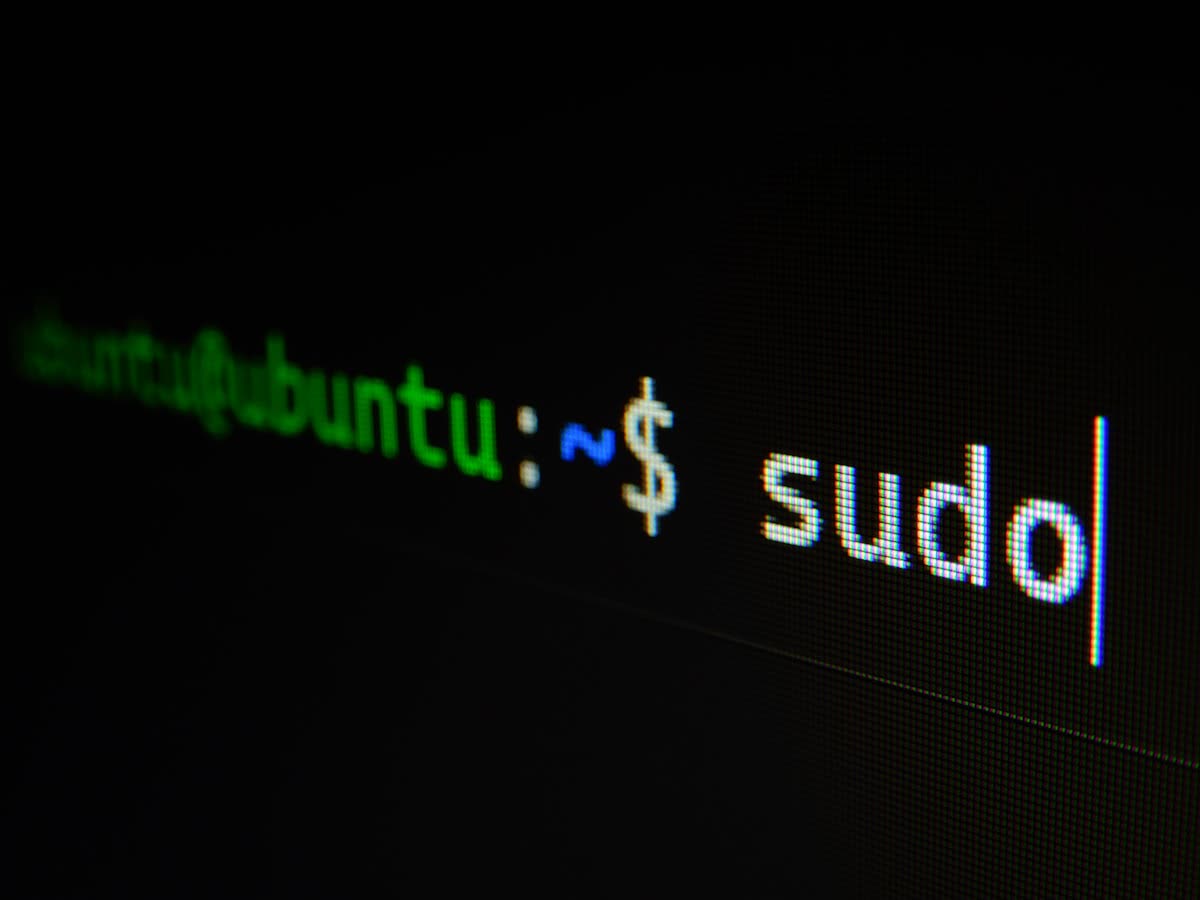
Run Command Prompt (CMD) as administrator and enter powercfg /energy /output "C:\energy-report.html". The system observes itself for 60 seconds and presents a very detailed HTML report covering faulty USB devices, drivers that block sleep mode and the gap between your battery's factory design capacity and its current full-charge capacity.
5. File Transfers That Beat the Explorer Bottleneck: Robocopy /MT
You installed a 7000 MB/s PCIe Gen4 NVMe SSD with DirectStorage support in your system. Yet when you move thousands of small files with Windows File Explorer (Copy/Paste), you watch the speed drop to laughable levels. That's because File Explorer is programmed to use a single thread.
To break this limit, use the command robocopy "C:\Source" "D:\Target" /E /MT:32 from CMD. The /MT:32 parameter at the end splits the huge copy job across 32 separate processor threads and runs them simultaneously. You won't believe how the transfer becomes 3-4 times faster!
Quick Reference Matrix
| Feature / Module | Access Command | Main Use |
|---|---|---|
| Reliability Monitor | perfmon /rel | Analysis of system crashes, drivers and blue screens. |
| Windows Sandbox | Windows Features | Safe, disposable, isolated software testing. |
| Energy Report | powercfg /energy | An X-ray of hardware power leaks and battery health. |
| Robocopy Multi-Thread | robocopy /MT:32 | Ultra-fast SSD data transfer using multiple CPU cores. |
Have you used any of the tools on this list before, and has one ever saved the day? Meet us in the comments and let's discuss the other engineering secrets hidden in the core of Windows together!