Most "How to install Python" guides provide the same superficial advice: "Download the file, click 'Next', and you are done!" However, such hasty installations often lead to the notorious "python is not recognized as an internal or external command" error when you try to write your first line of code in the terminal.
The Windows operating system does not automatically recognize external software (like Python) stored outside of its default system directories. If you overlook a single critical check box in the installer, Python will reside on your storage without its executable path being registered in the system search paths. In this guide, we bypass superficial "Next-Next" installers. We dissect Windows' **PATH and Environment Variables** architecture, system permissions, **the pip package manager**, and terminal verification to integrate Python cleanly into your Windows workspace!
1. Choosing the Optimal Release: Stable vs. Beta
Visiting the official downloads page exposes users to numerous development branches. Selecting the newest release (such as beta or early major iterations) is often counterproductive; ecosystem dependencies (like PyTorch, TensorFlow, Pandas, and Django) require months to achieve stable compatibility with new runtimes.
The optimal approach is to select the **latest Stable/LTS release** on the official downloads page (python.org/downloads). This ensures maximum compatibility across the open-source library ecosystem.
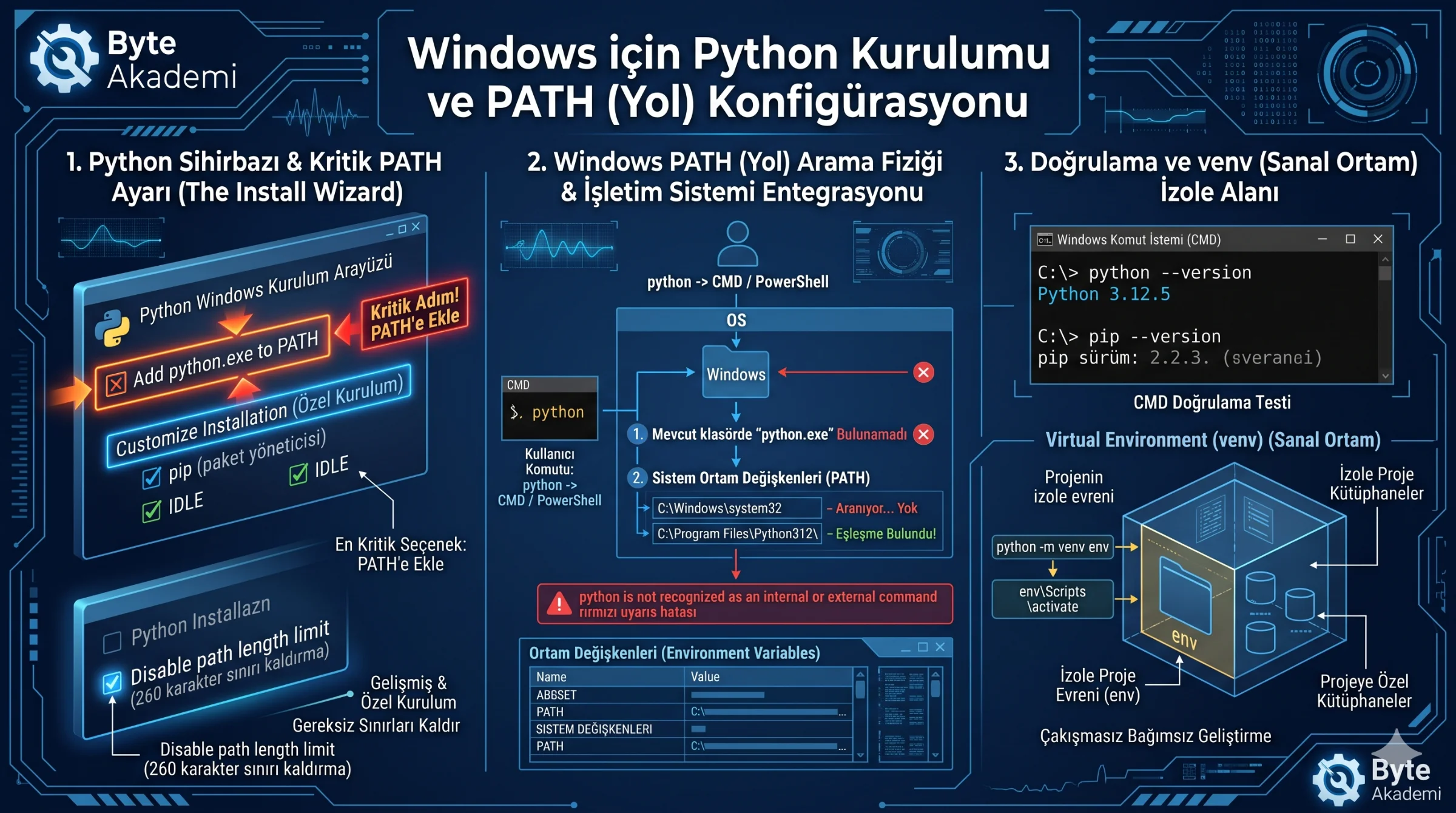
Enabling 'Add python.exe to PATH' during installation is not a trivial setting; it registers the Python runtime globally, enabling the OS shell to address the interpreter from any directory.
2. Step-by-Step Installation Algorithm
To integrate Python cleanly into Windows without configuration errors, execute these steps:
- Acquire the Installer: Download the appropriate Windows x86-64 executable installer (64-bit) from the official site. Modern 64-bit hardware is the standard for development.
- Elevate Privileges: Right-click the downloaded
.exefile and select "Run as administrator". This ensures write permissions for registering Environment Variables and system directory configurations. - Enable 'Add python.exe to PATH': At the bottom of the startup dialog, locate the checkbox labeled "Add python.exe to PATH" and ensure it is checked. This crucial step registers Python's executable within the Windows Environment Variables, permitting Global execution across any directory via CMD or PowerShell.
- Utilize Custom Installation: Click "Customize installation" rather than the express path:
- Optional Features: Verify that
pip(the package installer),tcl/tk and IDLE(development GUI),Python test suite, and thepy launcherare checked. Click "Next". - Advanced Options: Check "Install Python for all users". This installs the runtime in
C:\Program Files\Python31xrather than a localized user directory, preventing permissions conflicts with third-party tools like VS Code or PyCharm. Additionally, verify "Precompile standard library" is selected.
- Optional Features: Verify that
- Execute: Click "Install". If prompted with a "Disable path length limit" option at completion, enable it. This bypasses the historical 260-character path threshold, preventing errors with deep nested package architectures.
  [WINDOWS PATH RESOLUTION MECHANISM]

  User inputs "python" into CMD:
  ├─ Step 1: Windows searches the active directory for "python.exe". (If not found)
  ├─ Step 2: Search proceeds through directories in System Environment PATH variables:
  │  ├─ C:\Windows\system32... (No match)
  │  └─ C:\Program Files\Python312\ (MATCH FOUND! -> Executes.)
  │
  └─ IF 'Add to PATH' WAS OMITTED:
     Returns: "python is not recognized as an internal or external command"
3. Verification Protocol
Re-initialize any active terminal windows to force the OS to poll the newly registered system path variable. Execute the following in CMD:
- Verify Python Interpreter: Run:
Confirm the output matches the installer version (e.g.,python --versionPython 3.1x.x). - Verify pip Manager: Run:
Confirm pip is registered and mapped to the appropriate installation directory.pip --version - Interactive Testing: Launch the REPL shell:
Verify thepython>>>prompt. Run a test output:
Typeprint("Python on Windows is operational!")exit()and press Enter to return to CMD.
4. Subsequent Step: Implementing Virtual Environments (venv)
An installation mistake is installing dependencies directly into Python’s global environment. Conflicting requirements across multiple projects will quickly result in dependency resolution failures.
Implementing **Virtual Environments (venv)** isolates package dependencies on a per-project basis. Adopt this Workflow for all projects:
  # Navigate to project root
  cd C:\Yazilim\Projelerim\YeniProjem

  # Generate an isolated virtual environment named "env"
  python -m venv env

  # Activate the environment in Windows Command Prompt
  env\Scripts\activate

  # Confirmed by (env) appearing at prompt.
  # Installing libraries here keeps global Python unpolluted:
pip install requestsSoftware installation is not merely placing binaries on storage; it is integrating Python's runtime (PVM), package installer (pip), and dependency resolution mechanics directly into the host OS environment. Prioritizing correct PATH registration, user privileges, and venv isolation is essential to prevent configuration issues later in your workflow.